The Telegram notification preset
The “Telegram notification” preset forwards messages from your site form into your chat: a visitor leaves a request — the bot delivers it within seconds. The article walks through the assembly, the two fields of the node (the webhook and the chat), and the safe place for the bot token. No email setup is needed, and the submissions history stays in “Submissions”: the chat message is a notification, the archive lives in the admin.
A Telegram notification is the fastest way to see a request come in: there is no email to configure and no admin to open — the message arrives where you are already sitting.
Where to find the preset
Two ways. The first: the admin → “Site” → an empty flow → the toolbar → “Presets” → the “Telegram notification” card.
The second is right at flow creation: in the “Create flow” dialog, pick “Telegram notification” in the “Start from a preset” field — the diagram is staged as a draft, and all that remains is to open the editor and fill in the node.
What the preset builds
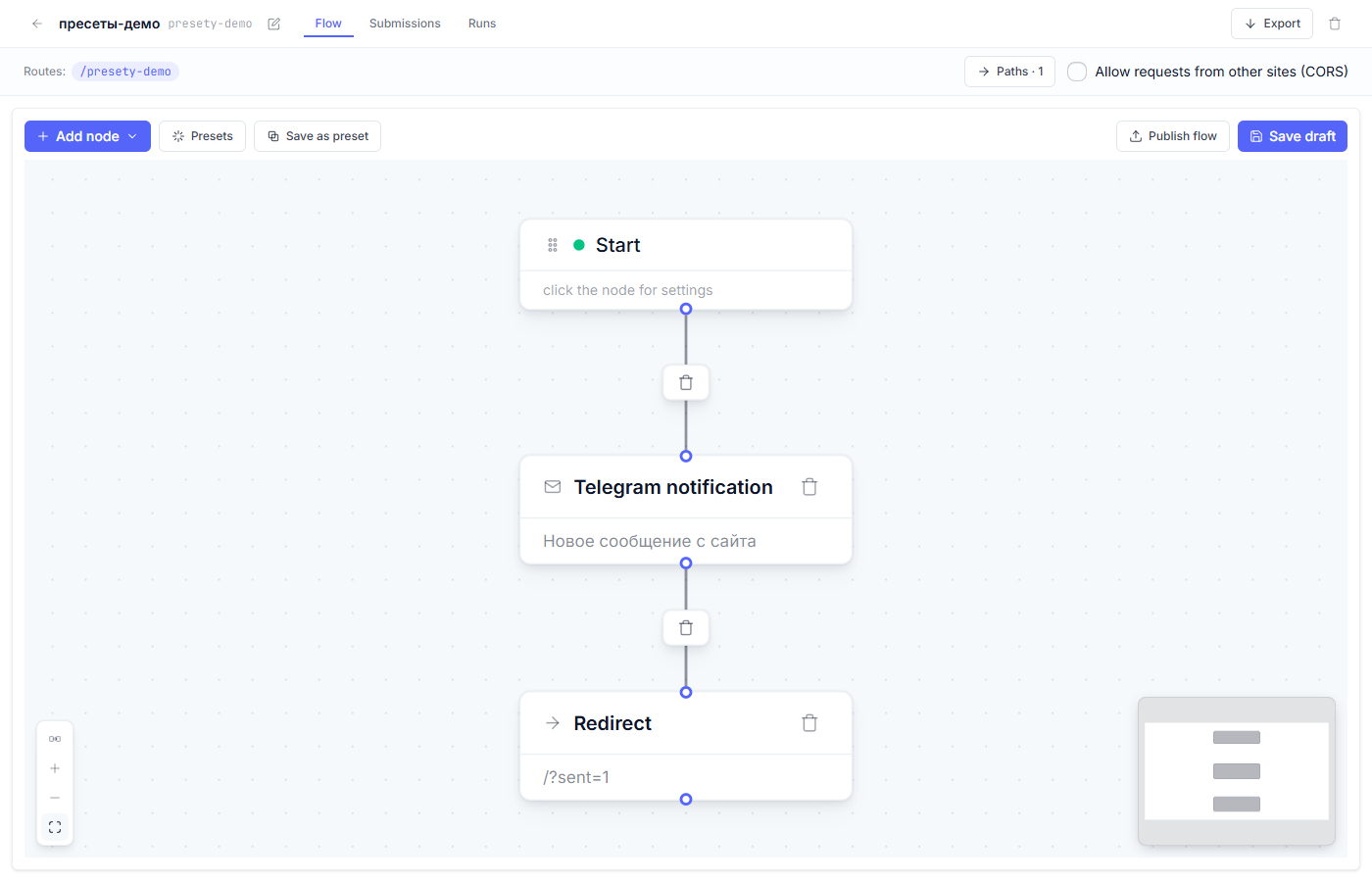
The preset has no options window: the card lays a short chain on the canvas right away.
| Node | Role in the flow |
|---|---|
| Start | The form submission arrives at the flow’s route |
| Telegram notification | Send a message to the chat |
| Redirect | Return the visitor to the page with ?sent=1 |
Step by step
1. Generate the diagram. Click the card — the nodes are already on the canvas (if the canvas wasn’t empty, the platform asks “Replace flow?”).
2. Create a bot. In Telegram, open @BotFather → the /newbot
command → a name and an address for the bot → BotFather issues a token
like 1234567890:AAE….
3. Find out the chat ID. Where to send: for a personal chat — the numeric
id (a helper bot such as @getmyid_bot will tell you: write to it and it
replies with your id); for a channel — @channelname, and the bot must be a
member of the channel.
4. Fill in the node. Clicking the “Telegram notification” node opens the inspector:
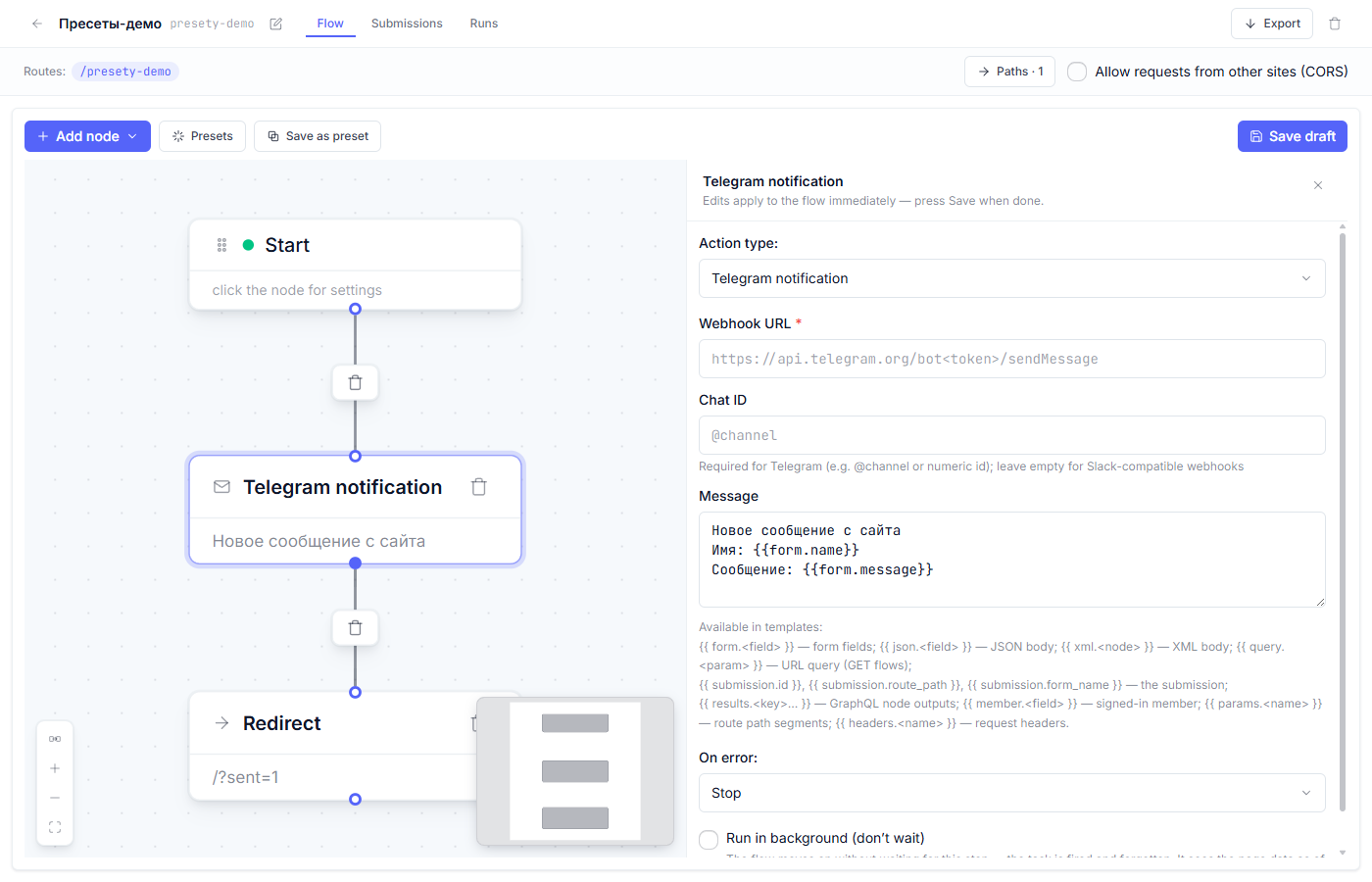
- Webhook URL — an address like
https://api.telegram.org/bot<token>/sendMessage— the bot token goes inside the address. - Chat ID — from step 3.
- Message — text with substitutions. The default text announces a new
message from the site and carries the sender’s name and the message itself:
{{ form.name }},{{ form.message }}— aform.<name>entry is a field of your form. The full list of available substitutions is shown right there in the inspector.
5. The bot token goes into “Secrets”. Don’t leave the token as plain text
in the node: anyone with editor access will see it. Enter the entire
webhook address into the “Secrets” tab of the “Site” section (for
example under the name telegram_webhook) and reference the secret by name
in the node — only the name is stored in the flow, the value stays out of it.
6. “Save draft” → “Publish flow” (“Draft, preview, and publish”).
What to check after generating
- The form on the site POSTs to the flow’s route — the binding is created at generation time.
- Send a test submission: the message arrived in the chat, and the visitor
was returned to
?sent=1. - Nothing arrived — look into the flow’s “Runs” journal: it shows what Telegram answered (the typical cause is a bot that isn’t in the channel, or a wrong chat id).
Fine points
- One bot — many flows: tell the forms apart in the message text with the
{{ submission.form_name }}substitution — the form’s name will arrive with the message. - If the message failed to go out and the run ended in an error, the node’s “On error” field controls what happens: “Stop” halts the chain and records the error in the journal — handy for debugging.
- The Telegram node and the “HTTP POST” node are relatives: the first sends to Telegram, the second — anywhere at all (a CRM, a spreadsheet). The second is covered in “Action nodes”.
Frequent questions
| Question | Answer |
|---|---|
| A 401 error in the runs journal | The bot token is wrong or has burned out — BotFather → /mybot → token. Reissue it and update the secret. |
| A 400 Bad Request: chat not found error | A wrong chat id, or the bot hasn’t been added to the channel. Verify the chat id with the helper bot. |
| Can I send to several people’s private chats? | Yes — one flow per recipient (each has their own chat id), or several Telegram notification nodes in the chain. |
| Will a file from the form arrive? | The chat receives the message text. Files are kept in the media library — put a link to the file into the text via a substitution. |
Next article: The “JSON endpoint” preset →
See also: Action nodes: what each one does · Draft, preview, and publish