The Registration preset
The Registration preset creates a member and walks them through to a confirmed email: the record, a letter with a link, the confirmation page. The article covers every step: the fields of the options window, assembling the diagram, the letter itself, and what to check before publishing.
Registration is a preset of two linked flows: the first creates the member and sends the letter; the second (a companion page) confirms the email by the link from the letter. Both are created with a single press.
Where to find the preset
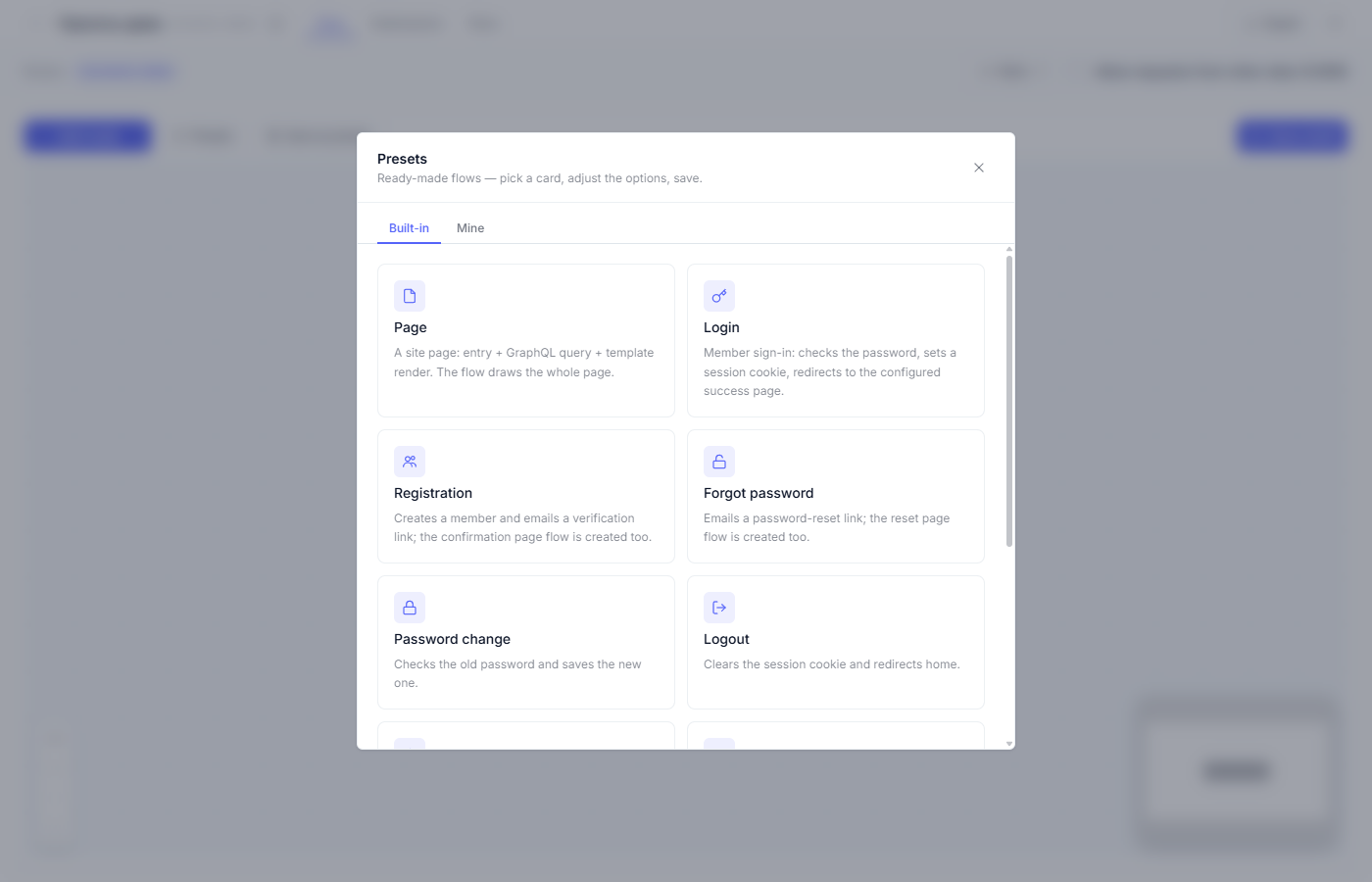
Open the “Site” section in the admin, enter an empty flow, and press “Presets” in the toolbar. The “Registration” card is third from the top of the gallery.
What the preset builds
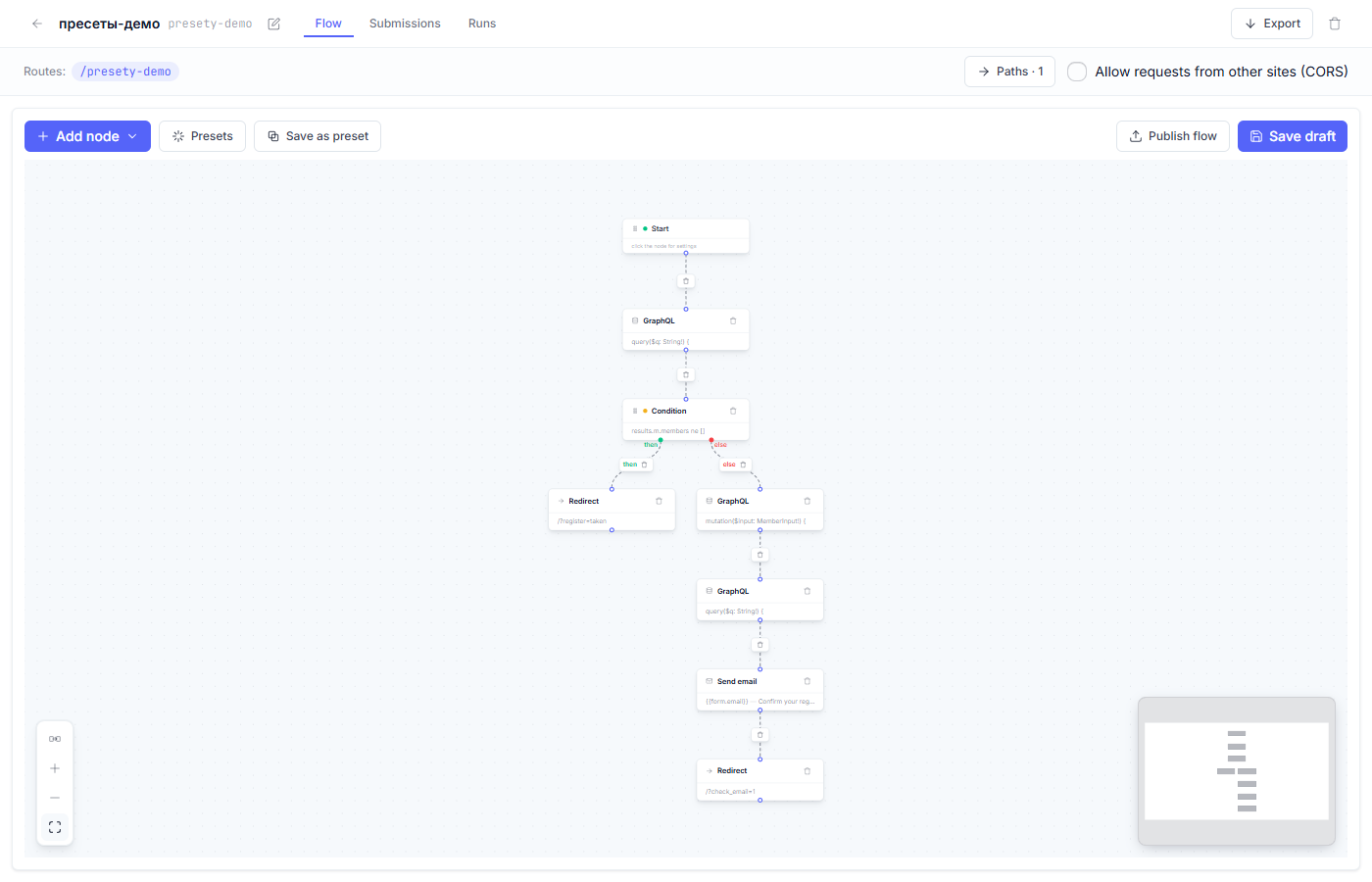
The main flow after generating:
| Node | Role in the flow |
|---|---|
| Start | Data from the registration form arrive at the flow route |
| GraphQL | Check whether the login is already taken |
| Condition | Taken: decline politely; free: continue |
| GraphQL | Create the member record |
| GraphQL | Read the created record back |
| Send email | A letter with a “confirm your email” link |
| Redirect | To the “we have sent you a letter” page |
The companion page is a separate flow on its own route: it opens the link from the letter, verifies the signature inside it, and confirms the member’s email.
Step by step
1. Open the options window (the “Registration” card in the gallery).
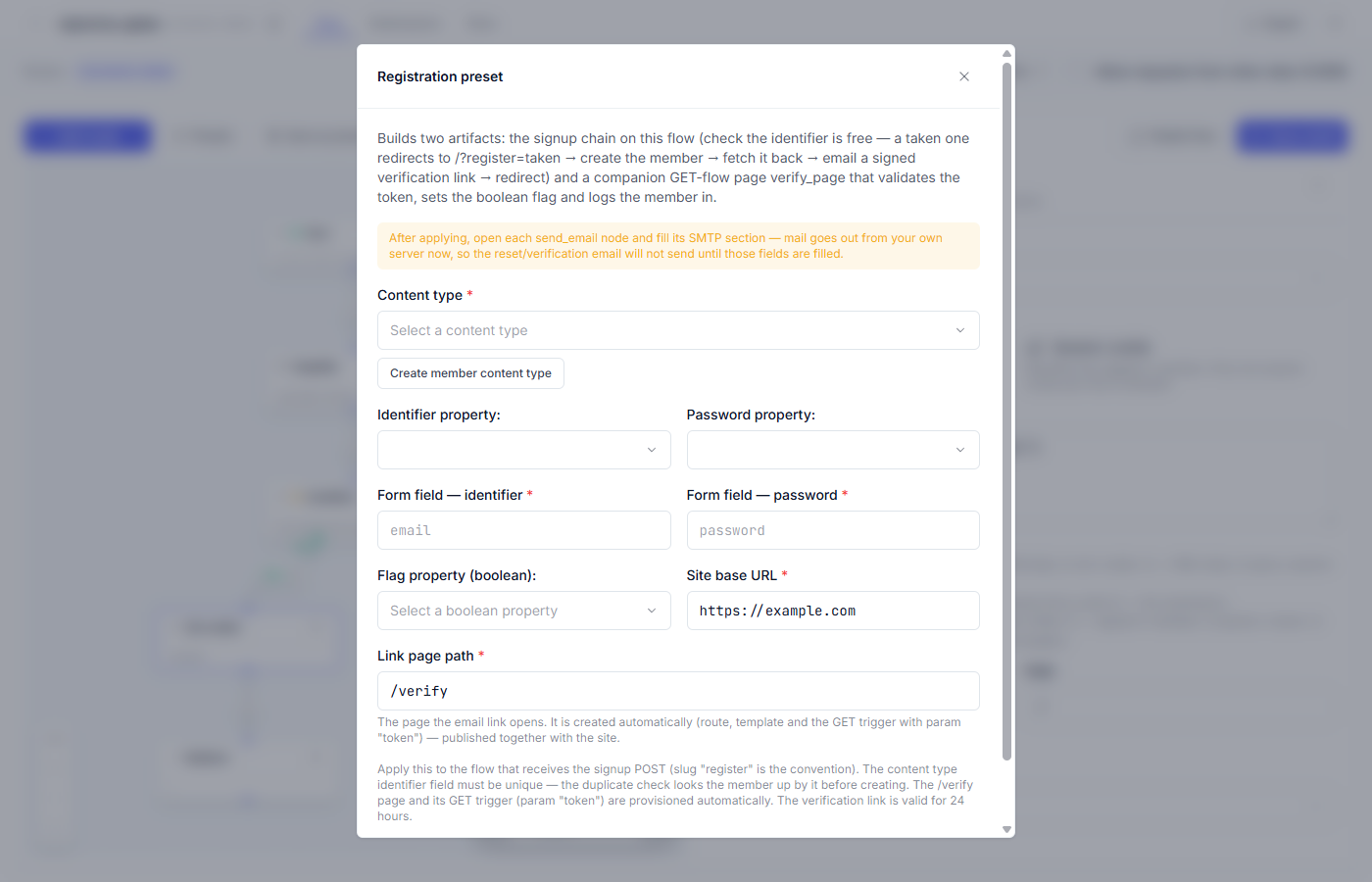
2. Choose the member content type. The same type as for sign-in works; the “Create member content type” button builds it if needed.
3. Match the properties and the form fields: login, password, and the
boolean flag property — the “email confirmed” mark that the confirmation
page sets. It is created along with the member type from step 2; for your
own type, add a boolean field and pick it. Then match the field names in
your registration form markup (email, password).
4. Enter the site address and the confirmation page path. The link in
the letter is built from the site address; the companion path is /verify
by default.
5. Read the email warning — it comes first in the window.
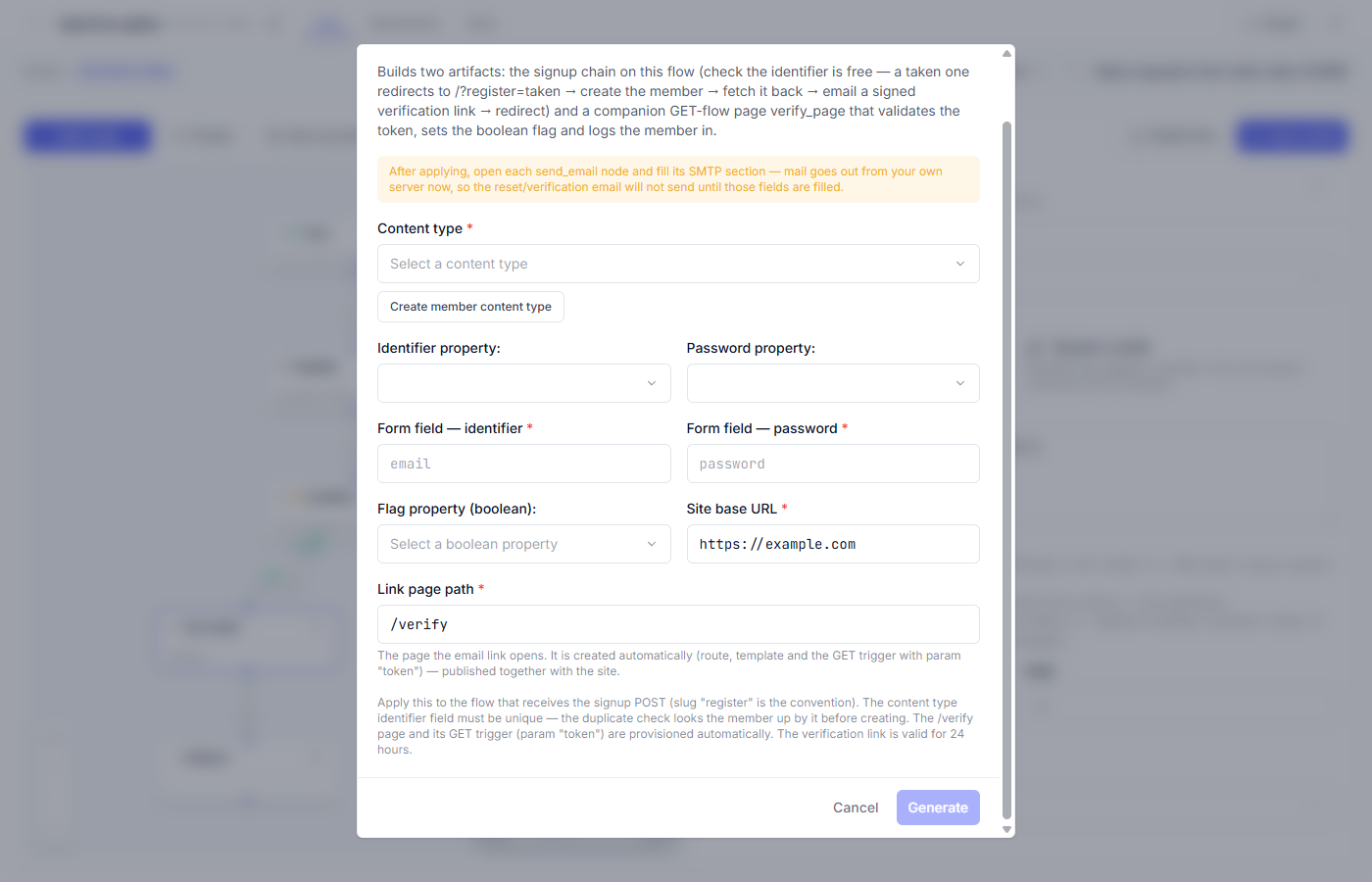
The platform does not send letters for you: after generating, open the email node and fill in its SMTP section (the server, the login, and the password of your mailbox).
6. Press “Generate”. This is where the preset differs from most: it builds the companion page right away — its own flow, a draft template, and a route. The main diagram, as with every preset, waits for your “Save draft”. After generating, look into the flow and route lists, and the new entries will be there.
The confirmation email
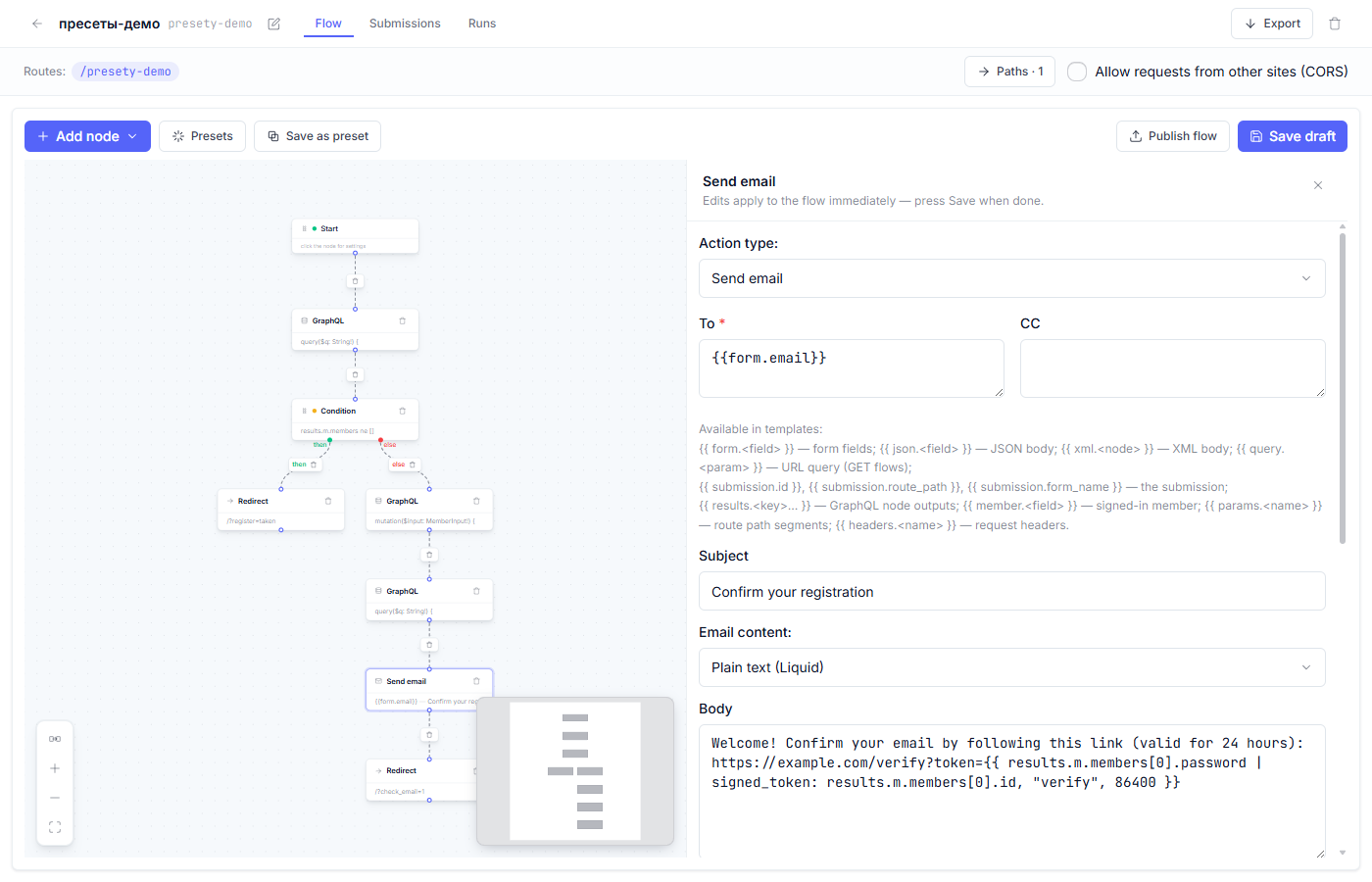
The key node here is “Send email”. Open its inspector:
Below, in the same inspector, sits the SMTP section the letter is sent from:
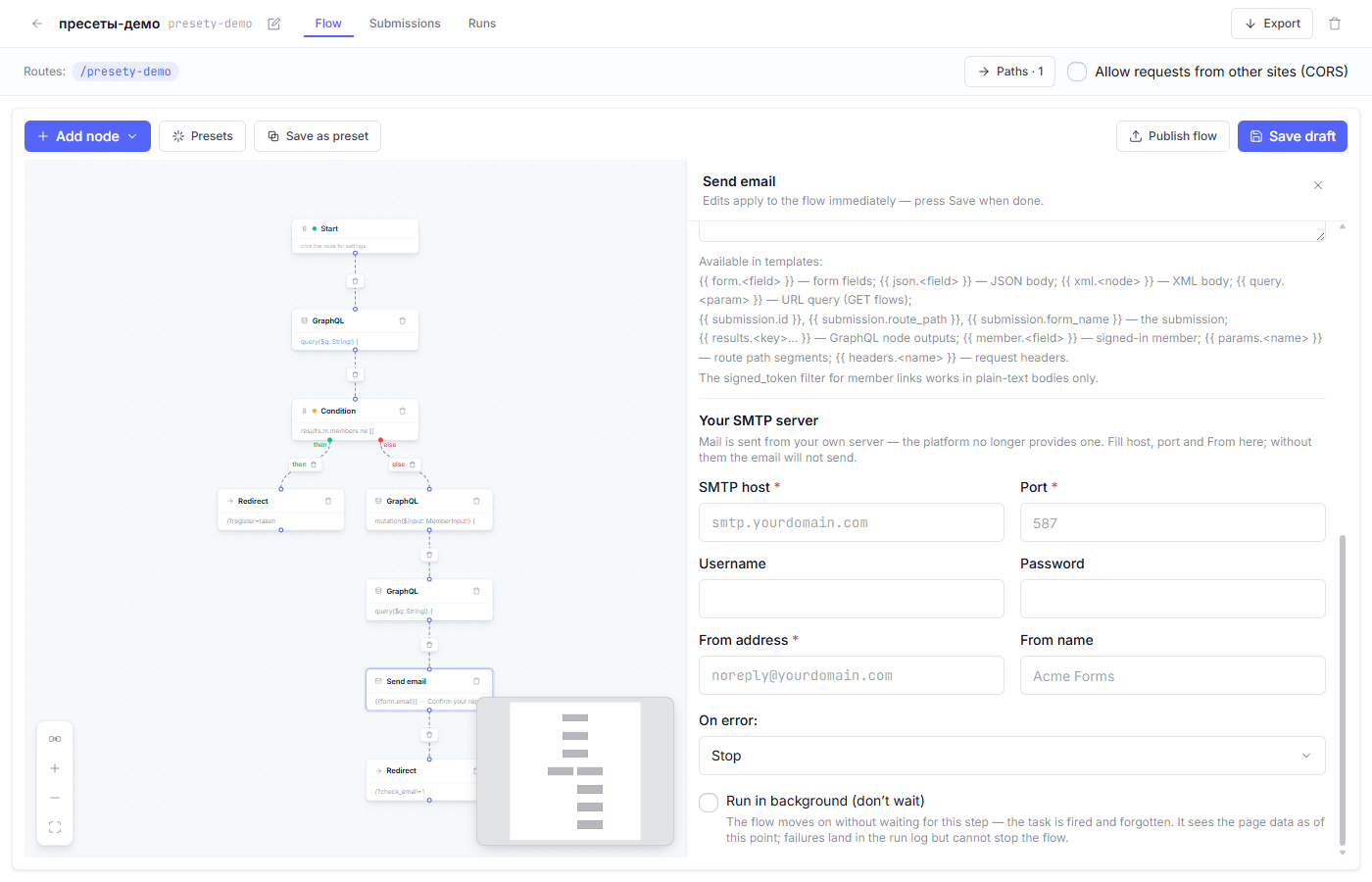
- The SMTP section: server, port, login, password. Without it the letter will not leave.
- The letter body contains a confirmation link with a signed token; it works for 24 hours, and after that the link goes dead.
- The letter body is edited freely: it is an ordinary template with substitutions.
The confirmation page
The companion opens as an ordinary flow from the list. Its canvas: verify the token from the link → confirm the member’s email → show a greeting.
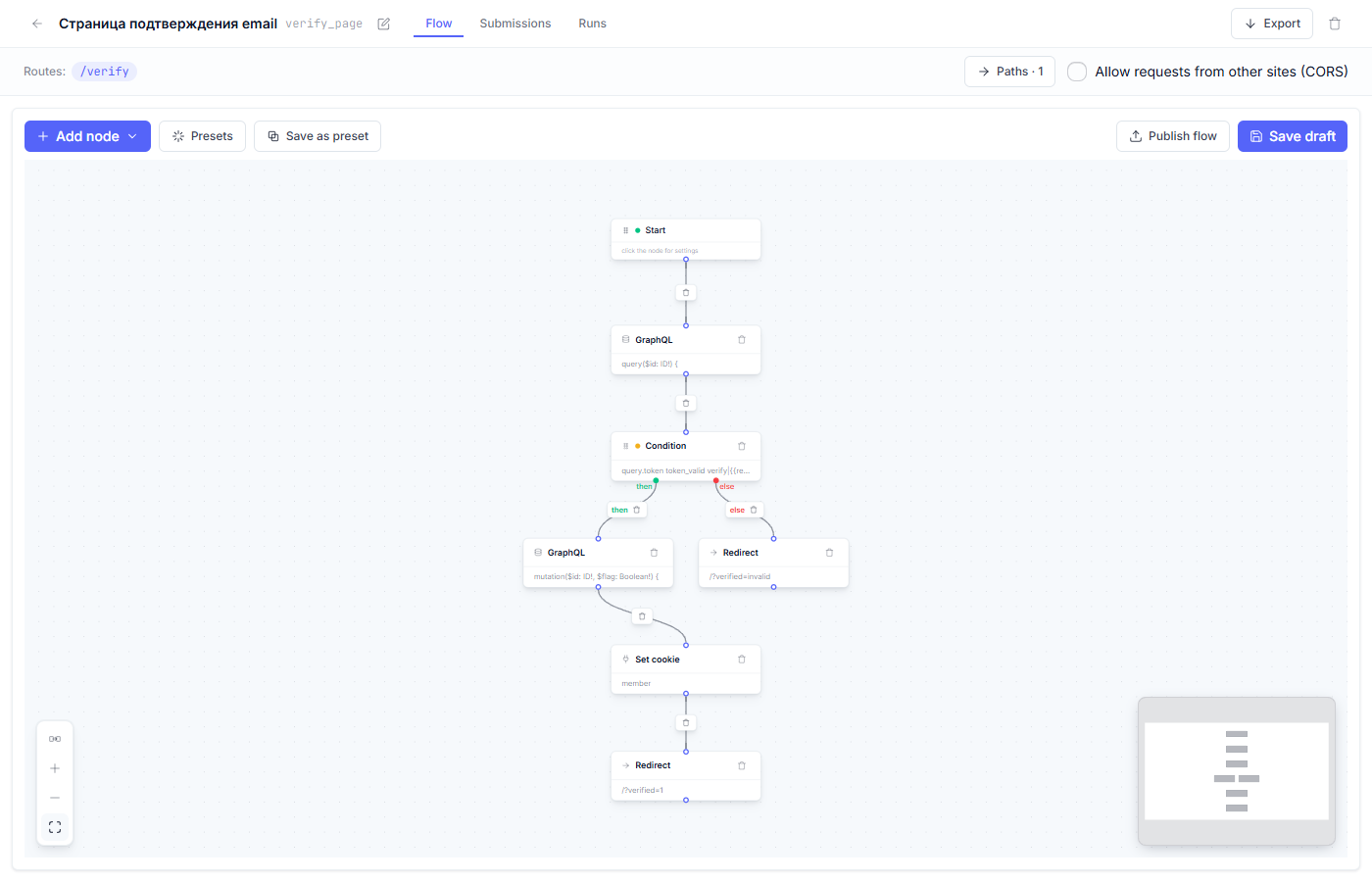
The link works for 24 hours; a repeat visit on a fresh link simply sets the confirmation flag again — nothing wrong with that.
What to check after generating
- Fill in the SMTP section in every email node (the main flow).
- “Publish flow” for the main flow and for the companion, then publish the site (details in “Draft, preview, and publish”).
- Walk through registration on the preview: the letter arrives, the link opens the companion, and sign-in works after the confirmation.
- Check the spam folder; for a new domain, letters end up there often.
Fine points
- The confirmation link is a signed token tied to the member record: it cannot be forged by brute-forcing the parameters.
- The link lives 24 hours. If a member is late, restarting the link by registering again will not work — the login is already taken; an administrator can delete the unconfirmed record, and then signing up again becomes possible.
- The message that a login is already taken appears only on a repeated registration attempt, and that is deliberate: do not turn it into a tool for probing whether a given email exists in the database.
Frequent questions
| Question | Answer |
|---|---|
| Letters are not sent at all | The SMTP section of the email node is empty: open the “Send email” node and enter the server, the login, and the password. |
| The link from the letter opens an error | 24 hours have passed (the token expired), or the companion flow is not published. Restarting the link by registering again will not work — the login is taken; an administrator can delete the unconfirmed record so the address can sign up again. |
| Can email confirmation be removed? | Yes: delete the email nodes from the diagram and keep the member creation, but then anyone will be able to register other people’s addresses. |
| How do I change the letter text? | In the inspector of the “Send email” node: the subject and the body are edited freely, and the signed link is there too. |
Next article: Forgot password preset →
See also: Login preset · Action nodes: what each one does