The Page preset
The Page preset turns a flow into a site page: queries from the library bring the data, the “Page render” node draws it with your template, and the route attaches itself. The biggest preset of the platform. Every step below comes with screenshots from the live interface: both option fields, the page cache, and publishing.
Whole site sections are assembled with this preset: a service catalog, a list of masters, a blog. You write the template once, and the preset brings the data, the sorting, and the path to the flow.
Where to find the preset
Open the “Site” section in the admin, enter an empty flow, and press “Presets” in the toolbar. The “Page” card opens the gallery; it is the first one.
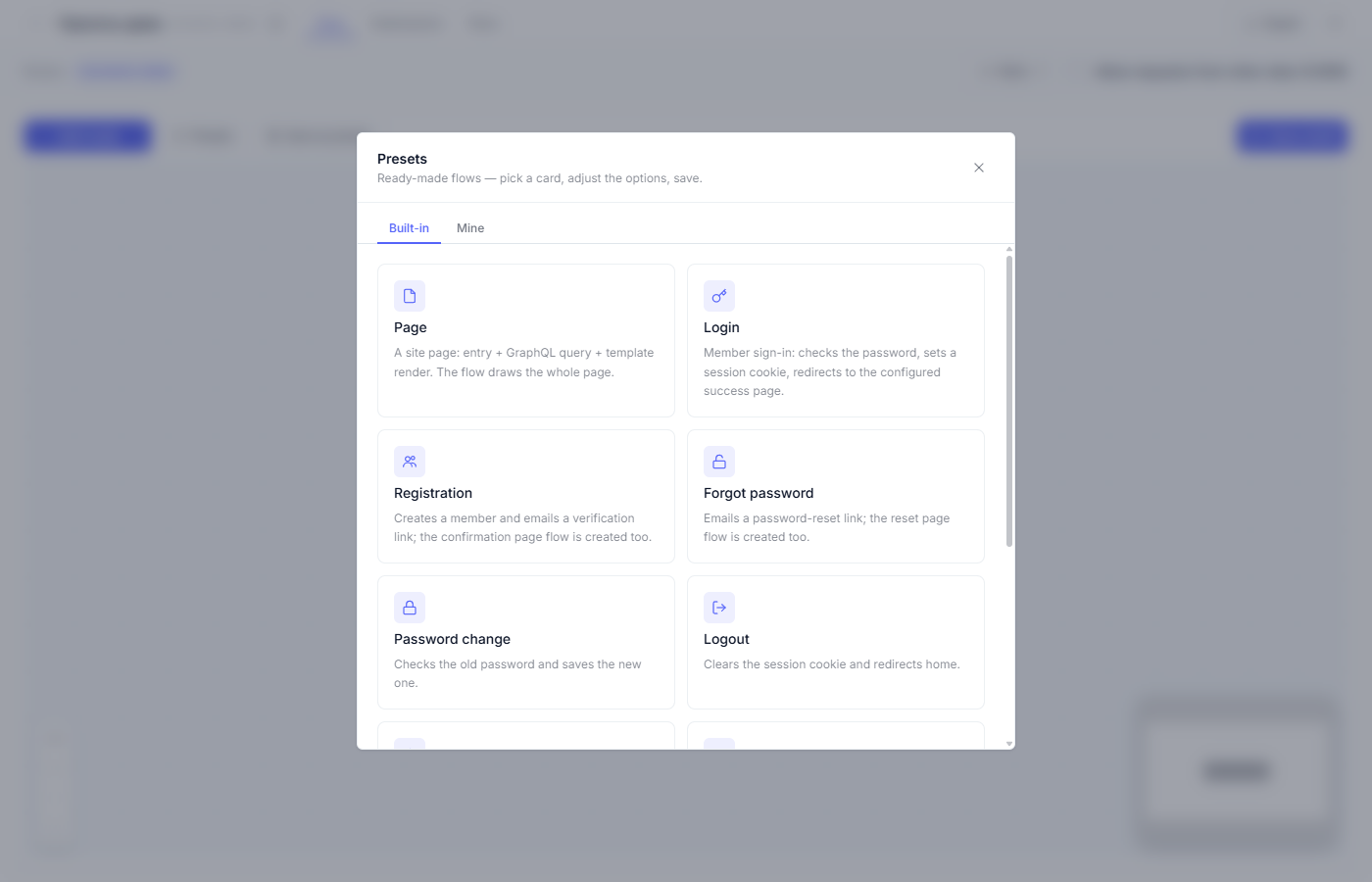
What the preset builds
| Node | Role in the flow |
|---|---|
| Start | A visitor follows the route, and the flow runs |
| GraphQL (optional) | Each query selected from the library brings data |
| Page render | Draws the HTML with your template from the site files |
The preset does not create the page template; the template is picked from files you have already uploaded. If there are no templates yet, start with the “Site files” article.
Step by step
1. Open the options window (the “Page” card).
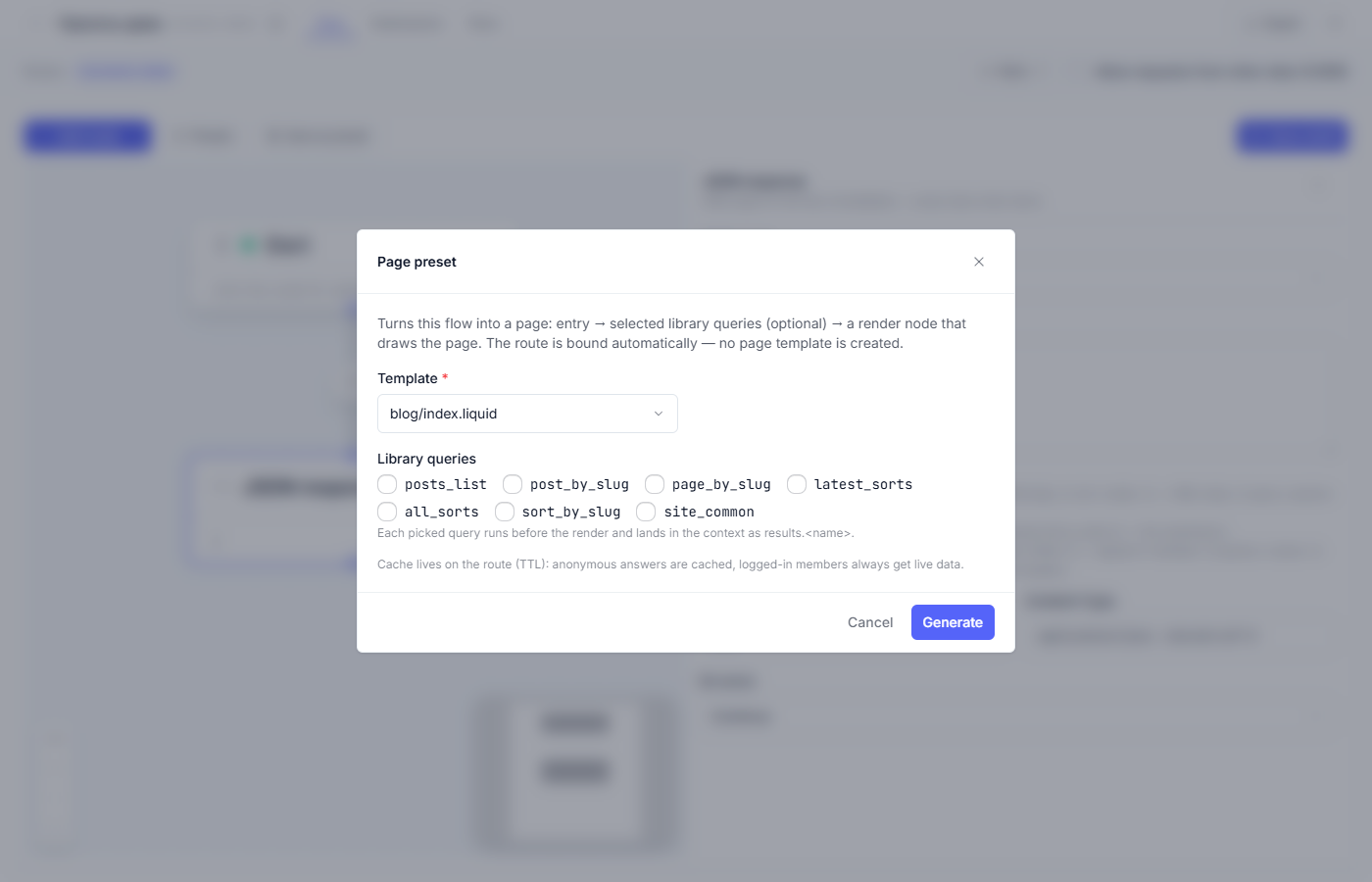
2. Pick a template. The field is required: without a template the
“Generate” button stays disabled. A template is a file with Liquid markup —
plain text with substitutions like {{ … }} — from the “Files” tab; for
every selected query it can use the results.<query name>… substitutions.
3. Tick the queries from the library (optional). Every selected query
runs before the render and lands in the template. For example, posts_list
brings the blog posts, and site_common brings the common site settings.
4. Press “Generate”. Note: this preset saves the flow into the draft by itself and creates a draft route. On a non-empty canvas, as with every preset, the platform first asks “Replace flow?”. The diagram shows up on the canvas, and the route shows up in the flow header.
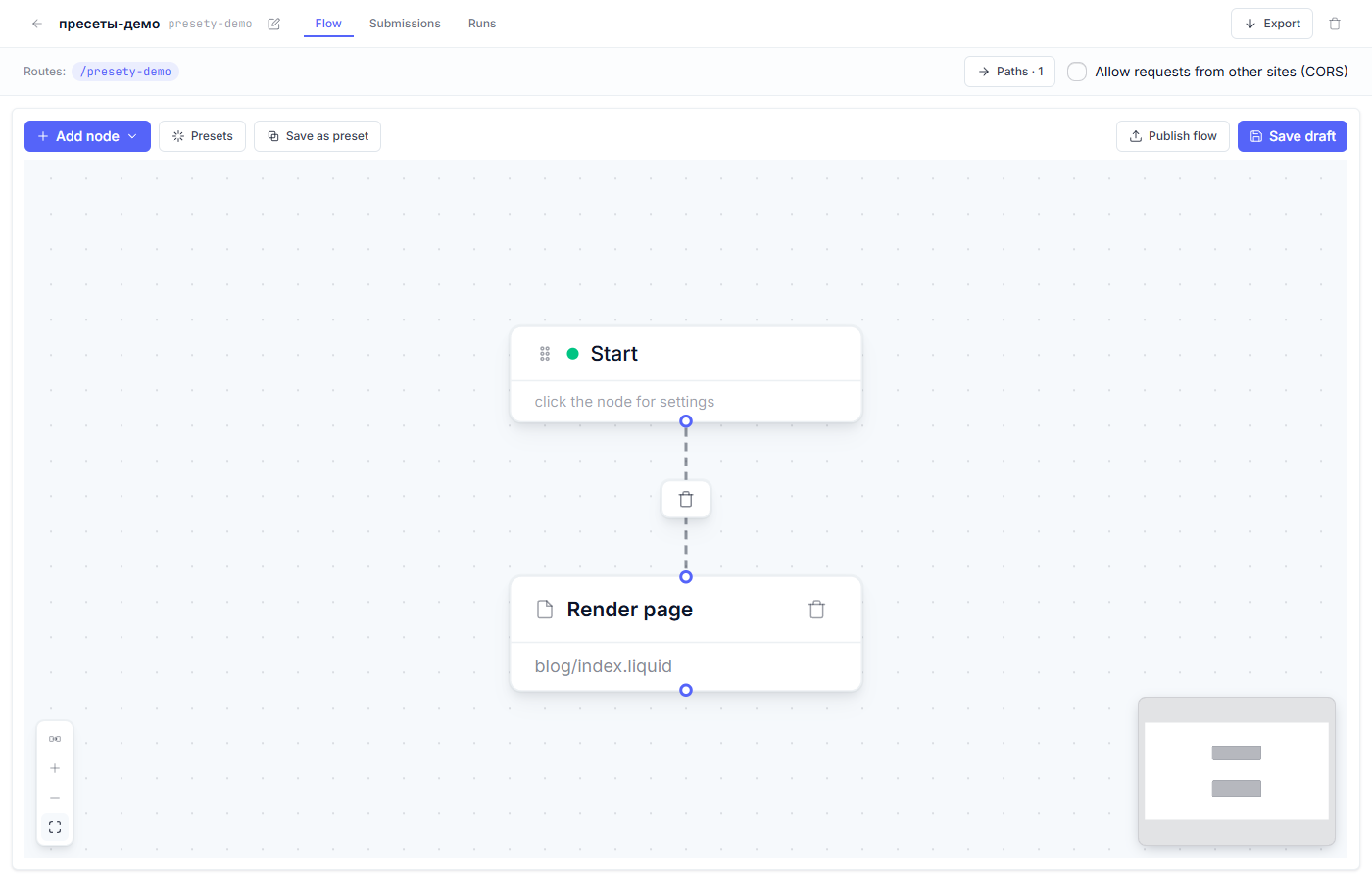
5. Look into the “Page render” node. The selected template and the data binding are visible there.
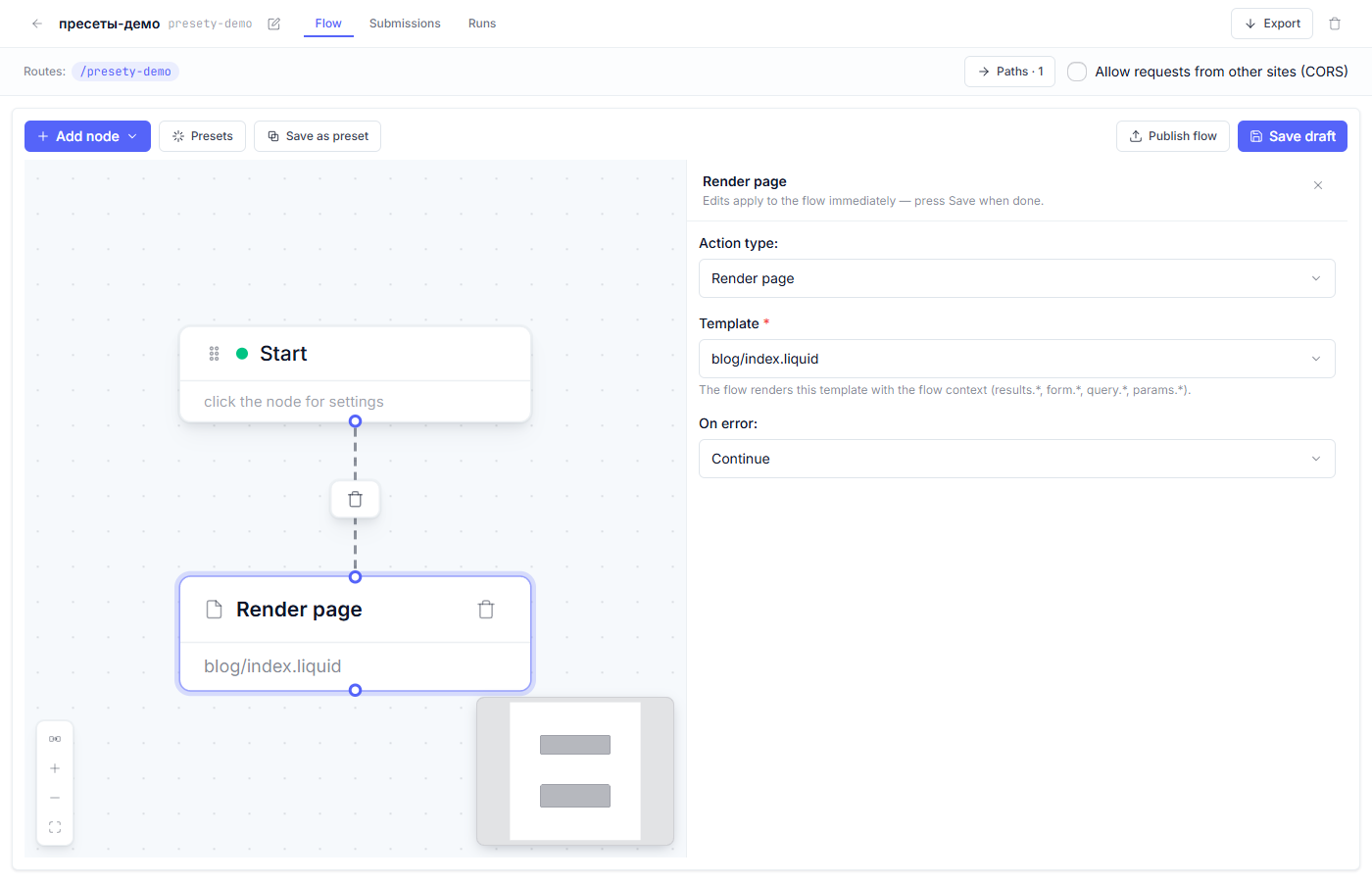
6. Publish. The preset saved the flow as a draft: press “Publish flow”, then publish the site with the new route — after that the page becomes visible to visitors (“Draft, preview, and publish”).
The page cache
The page route caches anonymous responses for a TTL (for the default, see the “Paths” window in the flow header). This is fast: repeat visitors get ready HTML. Signed-in members always see live data; the cache does not apply to them. After a change in the CMS, the page picks the new data up when the TTL expires, or immediately at the preview address.
What to check after generating
- The route in the flow header is the address you wanted (it changes in the “Paths” window).
- The preview address opens the page with the data.
- The site is published, and the page is visible at its address.
Fine points
- The preset does not ask for a path: the route attaches itself and is changed in the “Paths” window.
- You can skip the queries entirely; the template then draws a static page (contacts, about the project).
- The same page can live on several addresses: add a path in the “Paths” window in the flow header (the “Add path” button) — both addresses lead to the same diagram. Copying via export is for moving the page to another project (“Starter flows, export and import”).
- The template file is edited in “Files” independently of the flow: template edits are picked up after the next site publish.
Frequent questions
| Question | Answer |
|---|---|
| The “Generate” button is disabled | No template is selected. Upload one to the site files or pick an existing template. |
| The page serves old data | The anonymous route cache: wait for the TTL to pass or check via the preview address. Signed-in members always see live data. |
| How do I make the page closed? | Enable “Members only” on the “Start” node; anonymous visitors get a redirect to the sign-in page. |
| I need a record list with pagination | A library query plus a page parameter (query.<param>) in the query; the breakdown is in “The Query Library”. |
Next article: Login preset →
See also: Site files: templates and static assets · The Query Library