The Forgot password preset
The Forgot password preset assembles password self-service: the member enters an email and receives a signed link that works for one hour; the reset page verifies the link and opens a session. The new password is set by the Password change preset. Every step below comes with screenshots: the options window, the email, and how the two presets work together.
Password reset is a case where homemade solutions are risky: the link has to be signed, expire on a timer, and reveal nothing about whether the address exists in the database. The preset does all of this from the start.
Where to find the preset
Open the “Site” section in the admin → an empty flow → the toolbar → “Presets”. The “Forgot password” card sits fourth in the gallery, next to “Registration”.
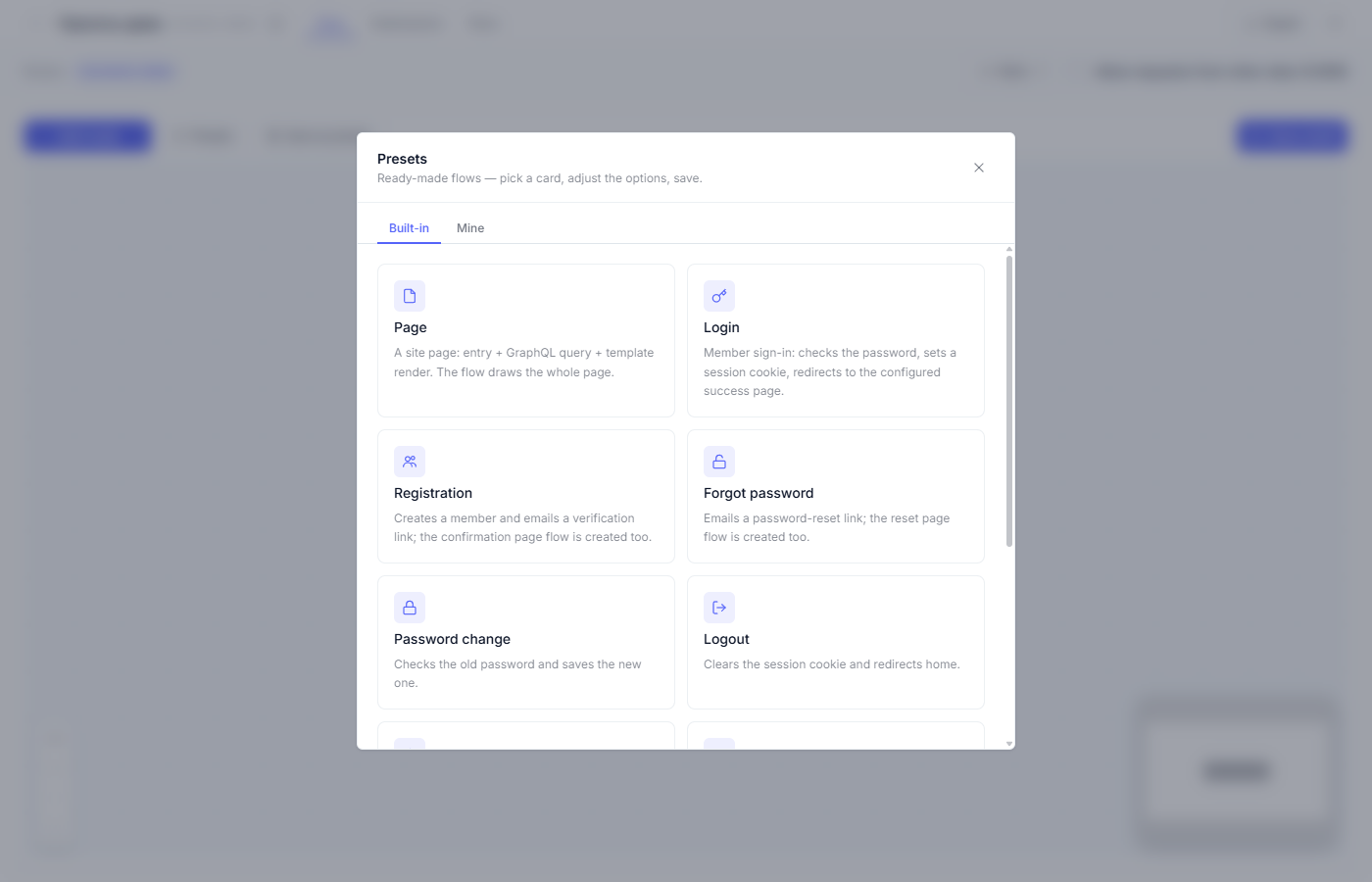
What the preset builds
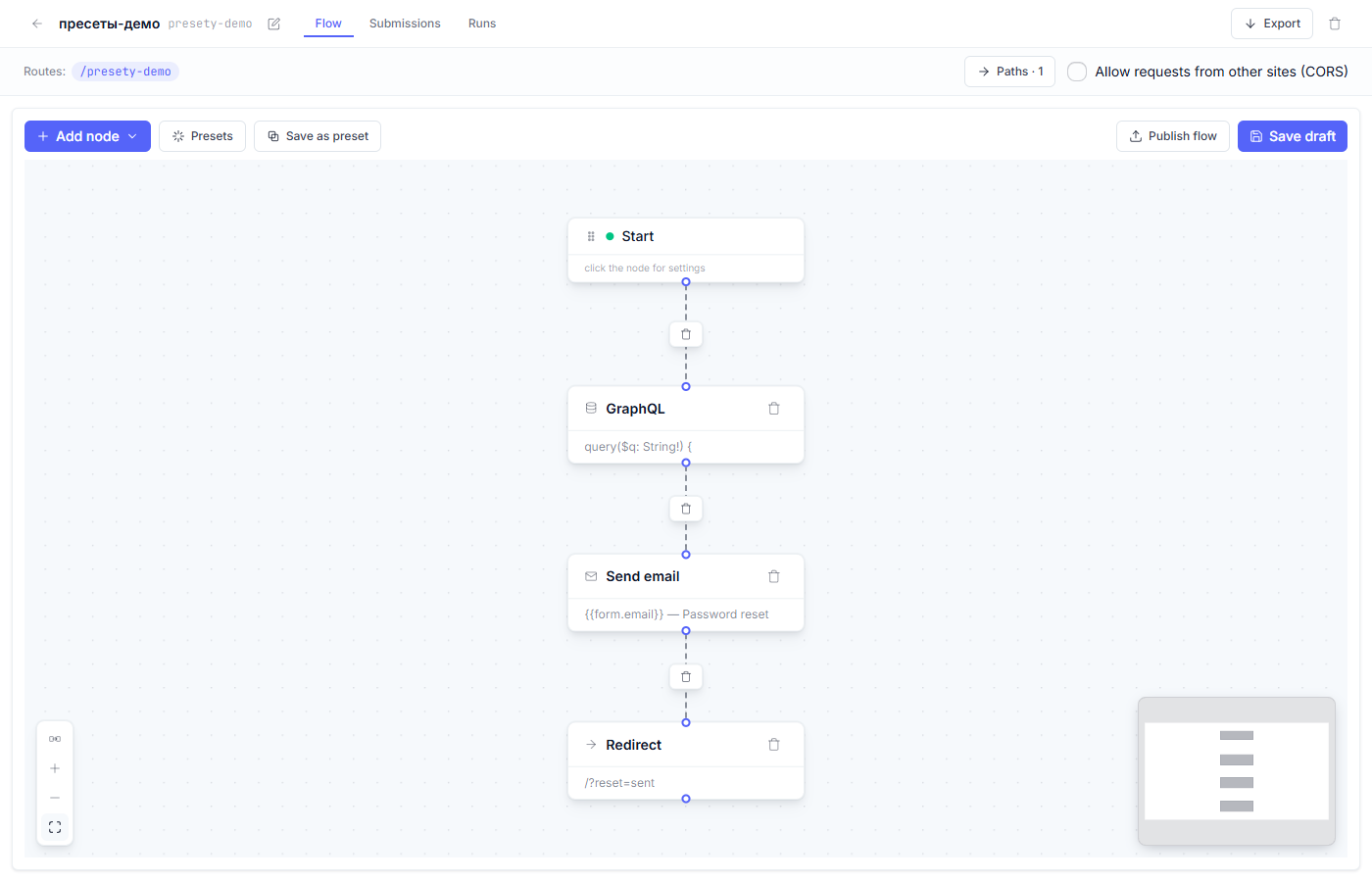
The main flow:
| Node | Role in the flow |
|---|---|
| Start | The forgot-password form sends the email address to the flow’s route |
| GraphQL | Look up the member by the entered address |
| Send email | A message with the reset link (a signed token, valid for one hour) |
| Redirect | To the “email sent” page |
Alongside it, a companion page — the reset flow on its own route: it opens the link from the email, verifies the token signature, and opens a one-day session for the member.
Step by step
1. Open the options window (the “Forgot password” card).
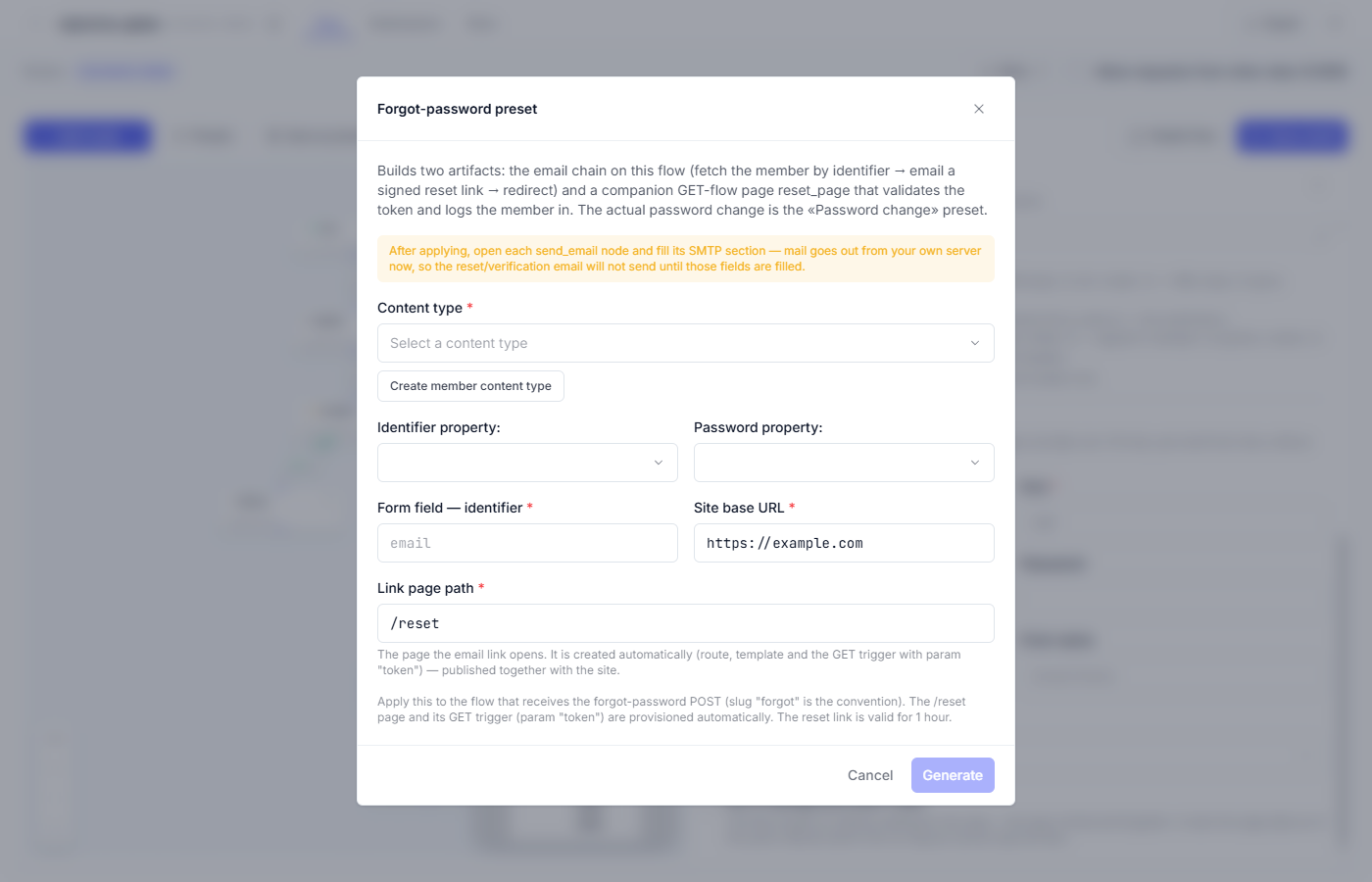
2. Pick the member content type and its properties — the same ones as in the Login and Registration presets. If the type doesn’t exist yet, the “Create member content type” button builds it.
3. Match the form field — the name of the email field in your form markup
(email by default).
4. Give the site address and the reset page path. The companion lives on
/reset by default; the link in the email is built from the site address.
5. Read the SMTP warning — it comes first in the window — and press “Generate”.
Like Registration, the preset builds the reset page by itself (a flow, a draft template, a route); the main diagram, as with every preset, waits for your “Save draft”. After generating, check the flow and route lists — the new entries will be there.
The email with the reset link
Open the Send email node:
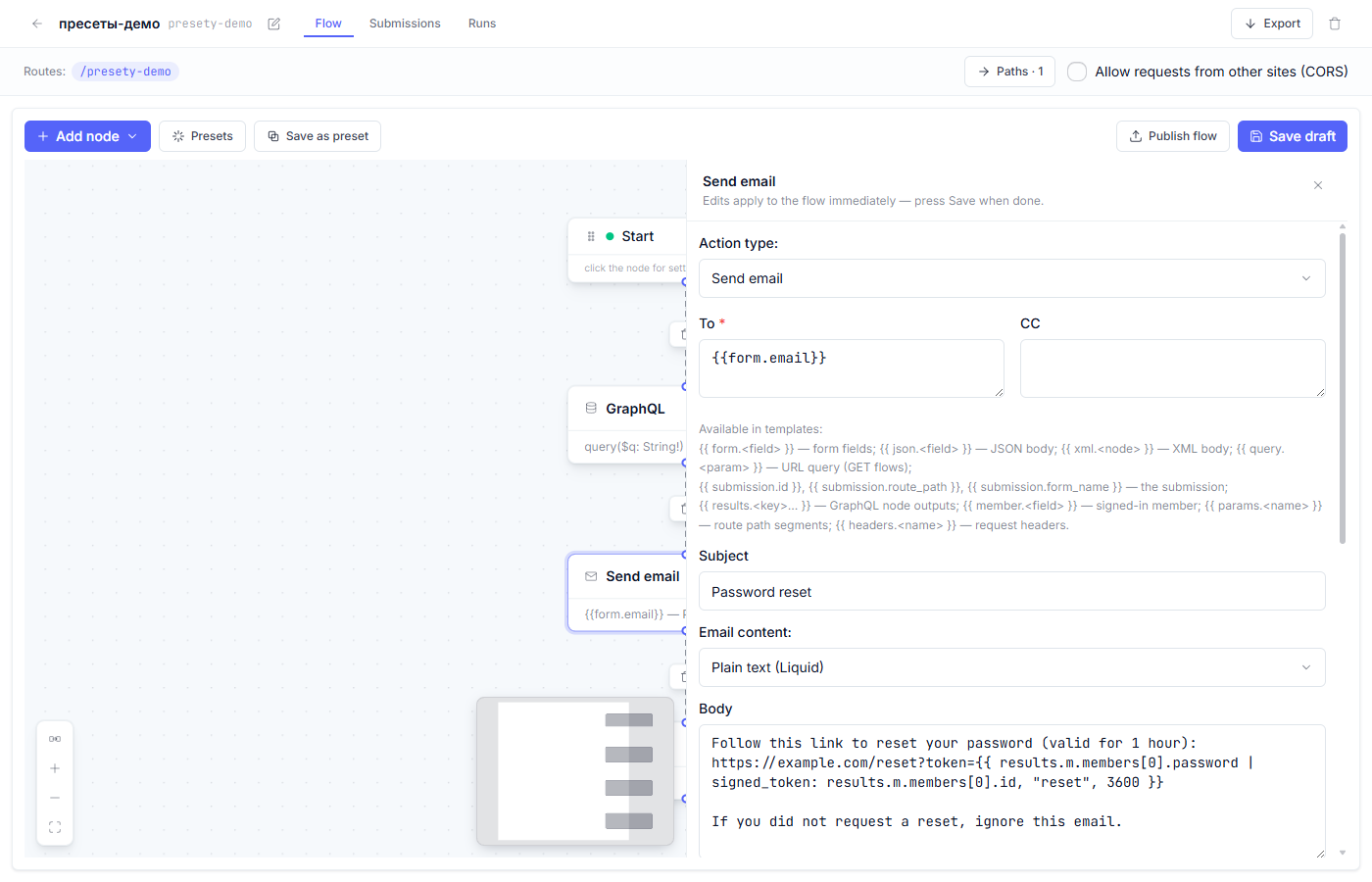
- The SMTP section is required: the server, port, login and password of your mailbox.
- The link in the email carries a signed token and stays valid for one hour — after that, the member requests a fresh email.
- The subject and the body of the email are freely editable.
The mailbox password is a credential: it belongs in the “Secrets” tab of the “Site” section. Reference the secret by name in the node — the flow stores only the secret’s name, and the value itself stays out of the flow.
The reset page
The companion receives the link, verifies the token, and opens a one-day session for the member — from that moment the platform treats them as signed-in:
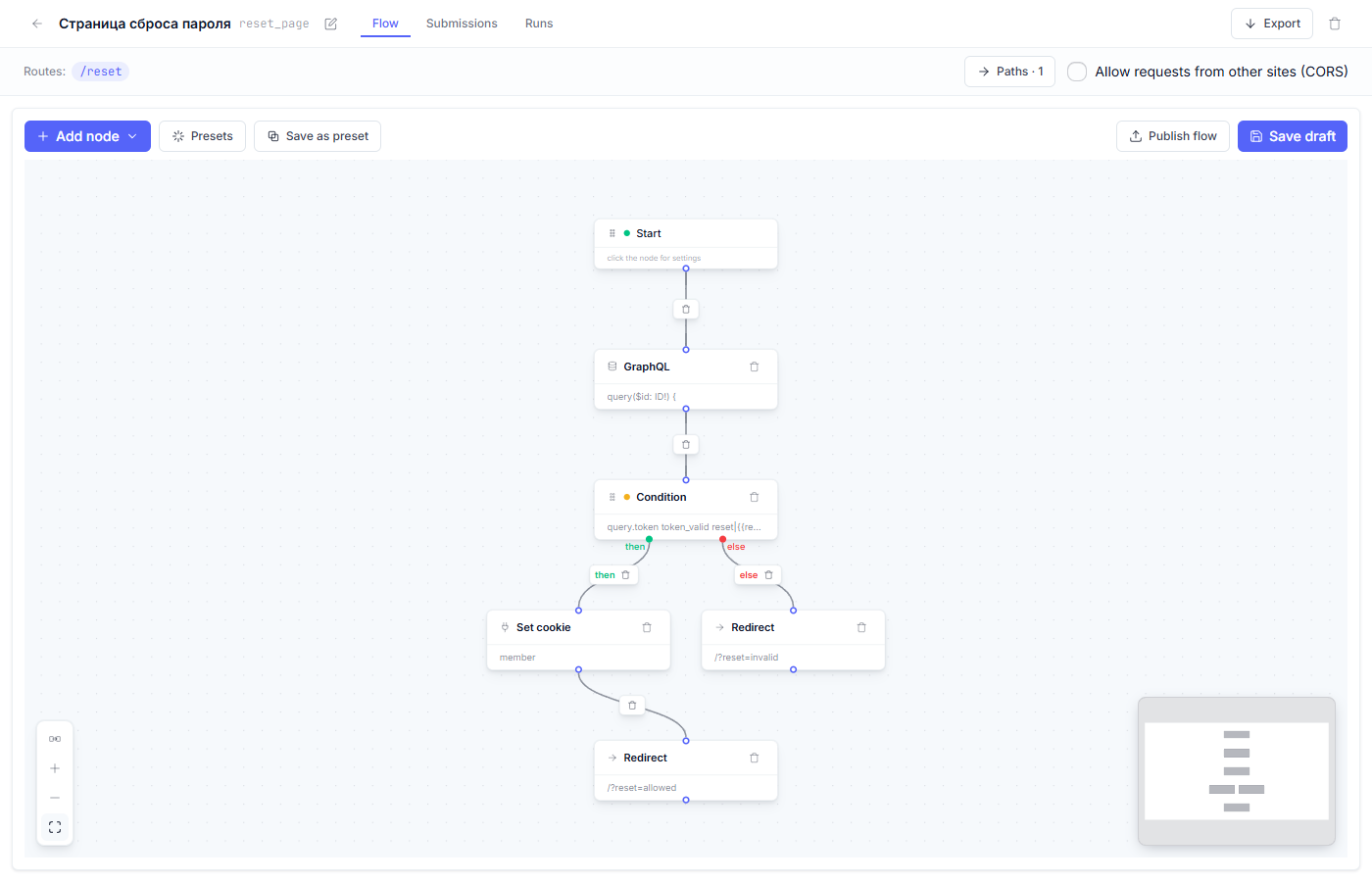
The new password is not typed on this page: it is set by the Password change preset. Put its flow on a members-only page, and the member will set a new password right after following the link. After that, ordinary sign-in works as usual.
Why the answer is always the same
Whether the member exists or not, the flow leads the visitor to the same “email sent” page — the form’s response reveals nothing about which addresses exist in the database. This way the form cannot be abused to probe which accounts exist on your site. Leave this behavior alone: an explicit “no such member” message is an open door to address probing.
What to check after generating
- The SMTP section in the email node of the main flow.
- Publishing: the main flow, the reset flow, then the site (“Draft, preview, and publish”).
- A run on the preview: email → the link opens a session → the Password change preset sets the new password → signing in with it.
Fine points
- The one-hour lifetime is a setting in the email node — the second number in
signed_token. Want two hours — change 3600 to 7200. - The reset page lives on the
/resetroute. The path can be changed in the “Paths” window — then fix the link in the email to match. - Once the hour has passed, the link leads to an error message; the member requests a fresh email.
Frequent questions
| Question | Answer |
|---|---|
| The email never arrives, although the member exists | Check the SMTP section in the email node first, then the spam folder. |
| The reset link shows an error right away | The hour has passed, or the reset flow is not published. Request a fresh email. |
| Can a password be reset without email? | In this preset, no: email here is the delivery channel for the signed link. |
| How is this different from the Password change preset? | Password change is for a signed-in member who remembers the old password. Forgot password is for one who forgot it: the confirmation goes through email. |
Next article: The Password change preset →
See also: The Login preset · The Registration preset