The Password change preset
The Password change preset gives a signed-in member a page where they change the password on their own: the old password is verified, the new one is stored. No email involved — the member is already signed in. Works with the same member type as the Login preset. The article covers the options-window fields, the diagram, and the pre-publish checks.
Password change completes the sign-in + forgot-password pair: the member is signed in and wants a new password without involving email. The preset usually sits on a private account page.
Where to find the preset
Open the “Site” section in the admin → a flow (a private one works best — the “Members only” mode) → the toolbar → “Presets” → the “Password change” card.
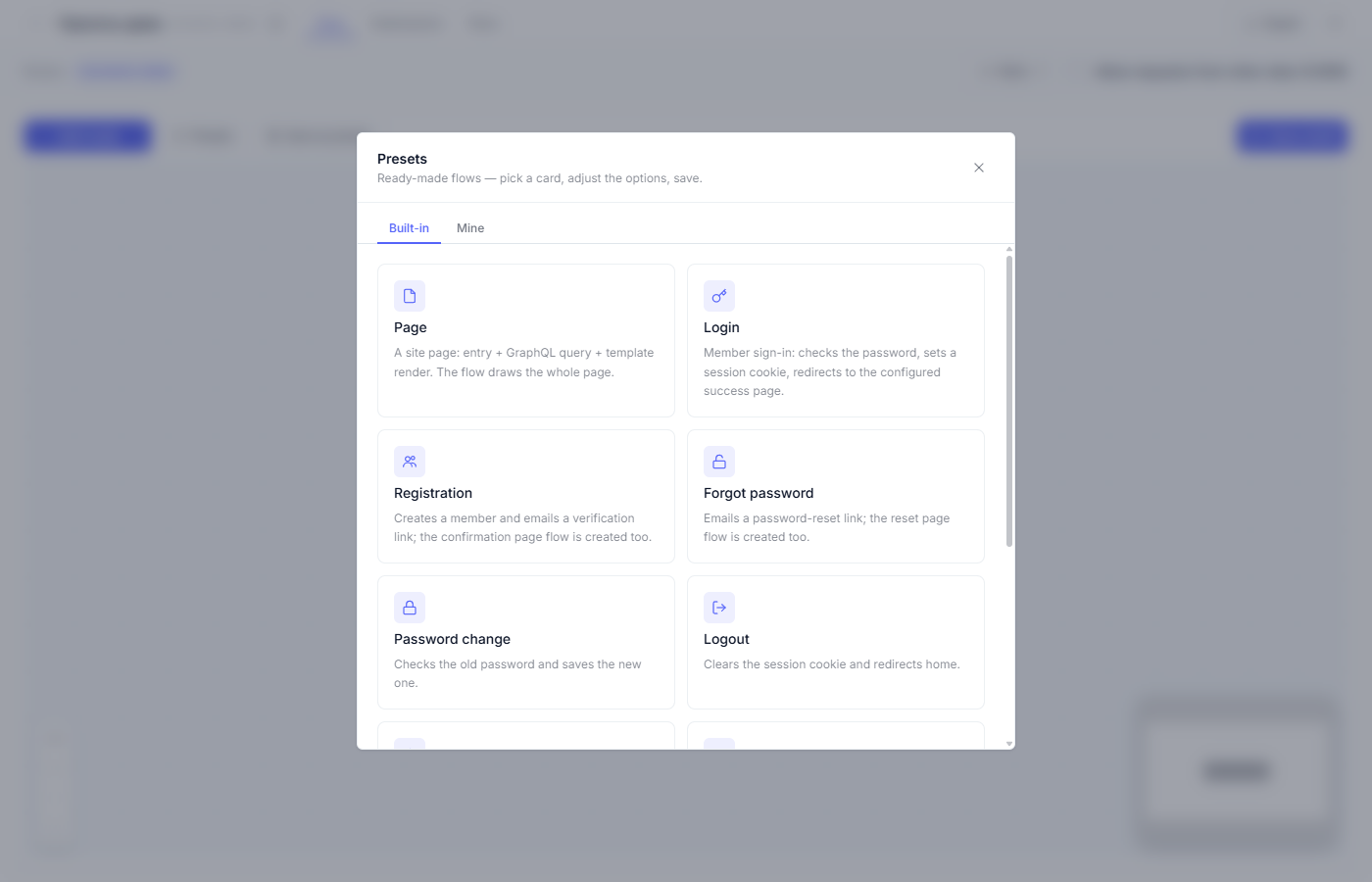
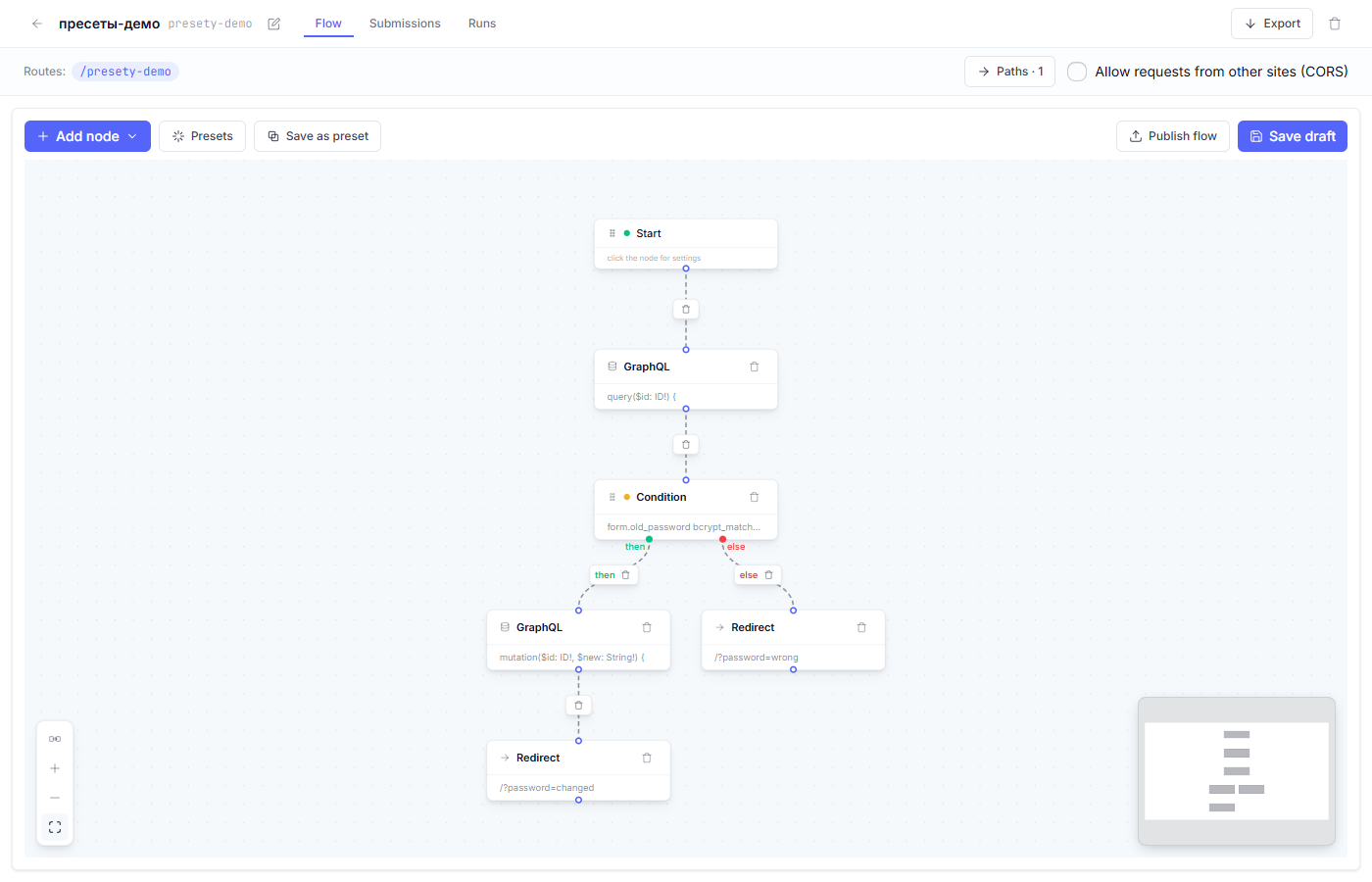
What the preset builds
| Node | Role in the flow |
|---|---|
| Start | The password-change form sends the data to the flow’s route |
| GraphQL | Read the member’s current password fingerprint |
| Condition | Does the old password from the form match the fingerprint? |
| GraphQL | Store the new password (the password field only) |
| Redirect | To the “password changed” page — or the “old password is wrong” one |
Step by step
1. Open the options window (the “Password change” card).
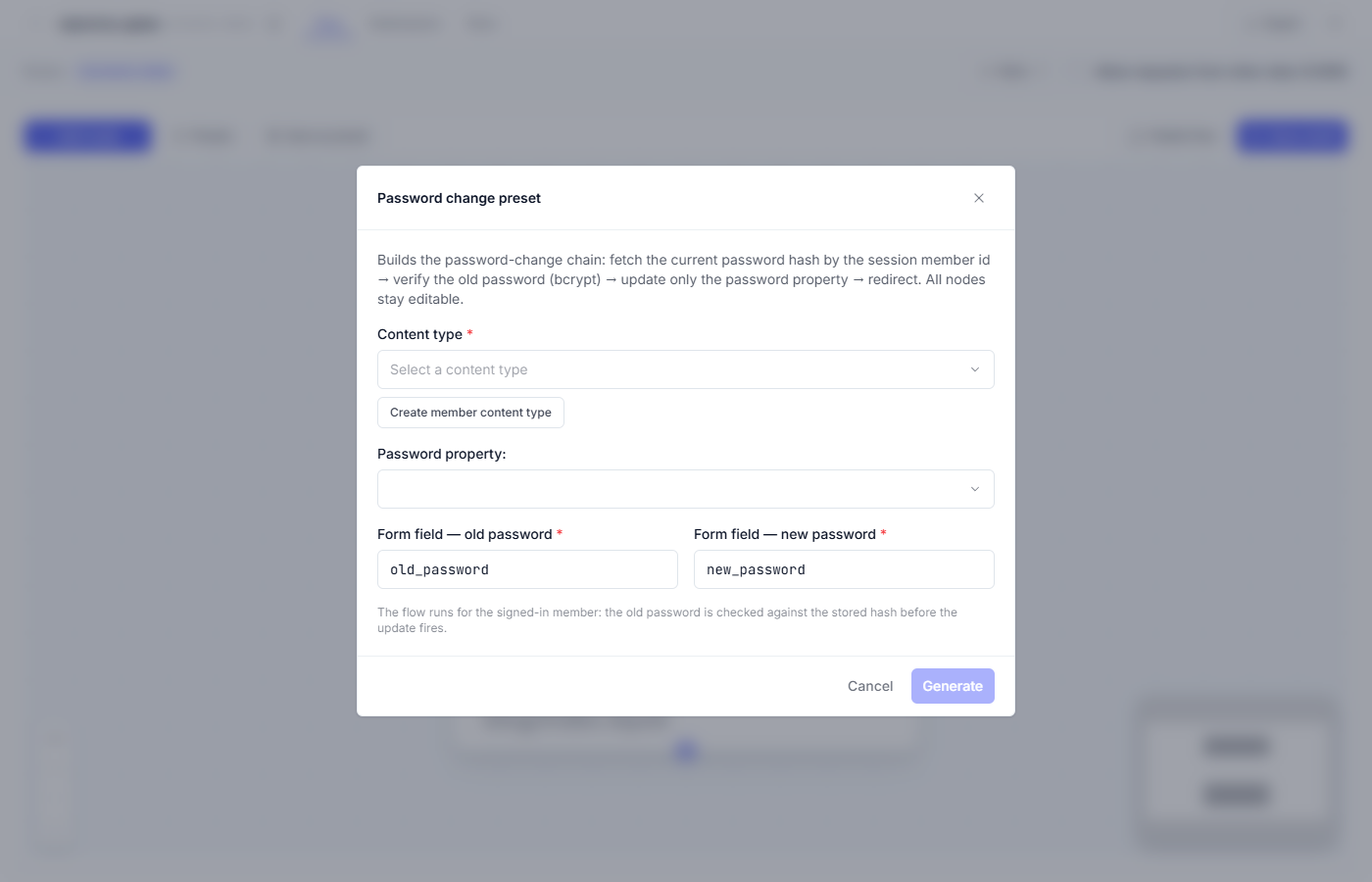
2. Pick the member content type — the same one as in the Login and Registration presets — and its login and password properties.
3. Match the form fields: the old and the new password — the field names
in your form markup (old_password and new_password by default; check them
against the markup).
4. Check where the flow takes the member from. Password change works for someone already signed in: the member is identified by the cookie session that the Login preset sets. When the flow lives behind “Members only”, a request without a valid session never starts the flow at all.
5. Press “Generate”. The diagram lands on the canvas; if the canvas wasn’t empty, the platform asks “Replace flow?” first.
How the change goes
The key node is the Condition: a bcrypt comparison of the old password from the form against the fingerprint from the member record.
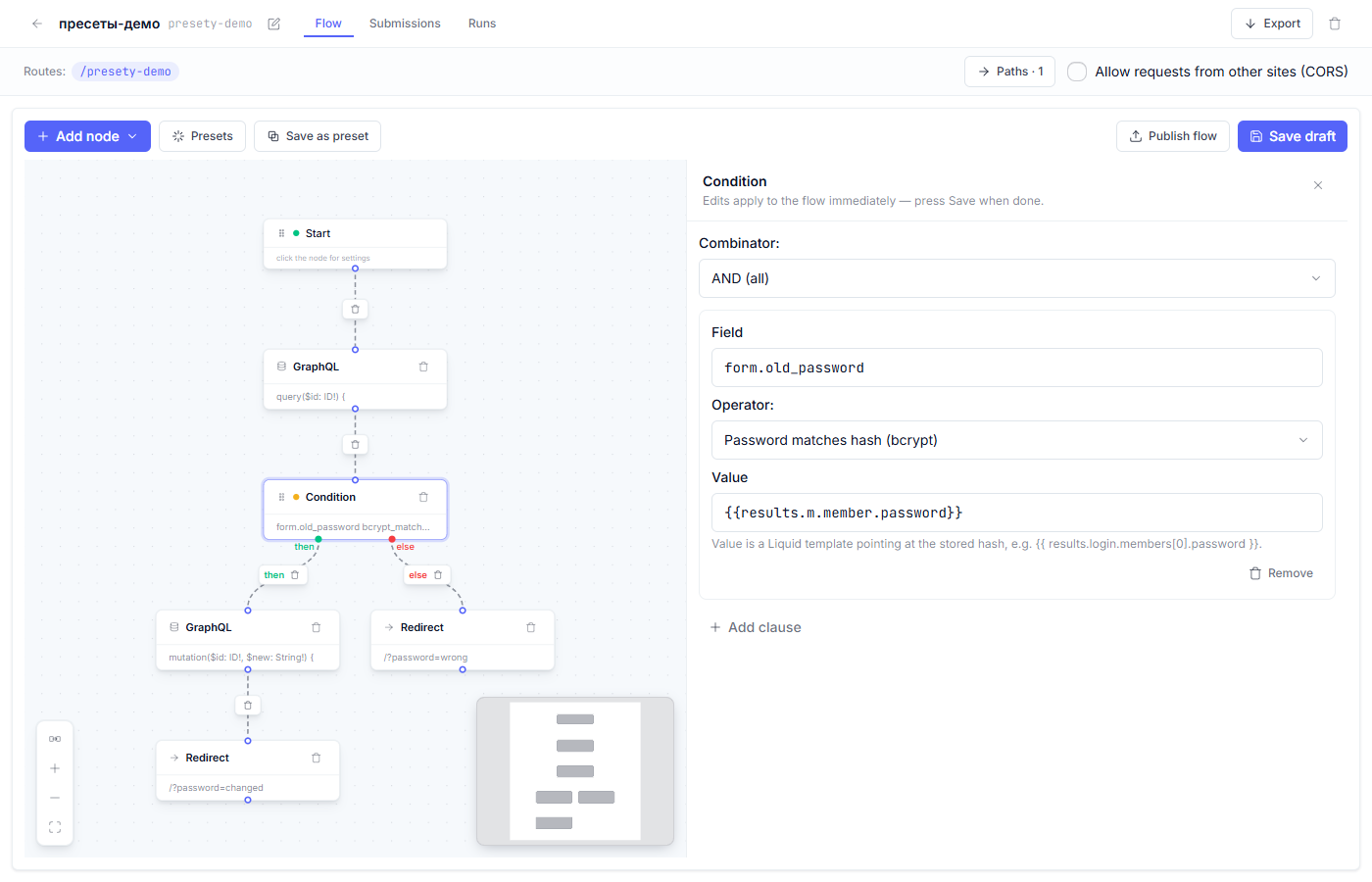
On a match, the GraphQL node stores the new password — and touches the password field only: the name, the email and the rest of the member record stay as they are.
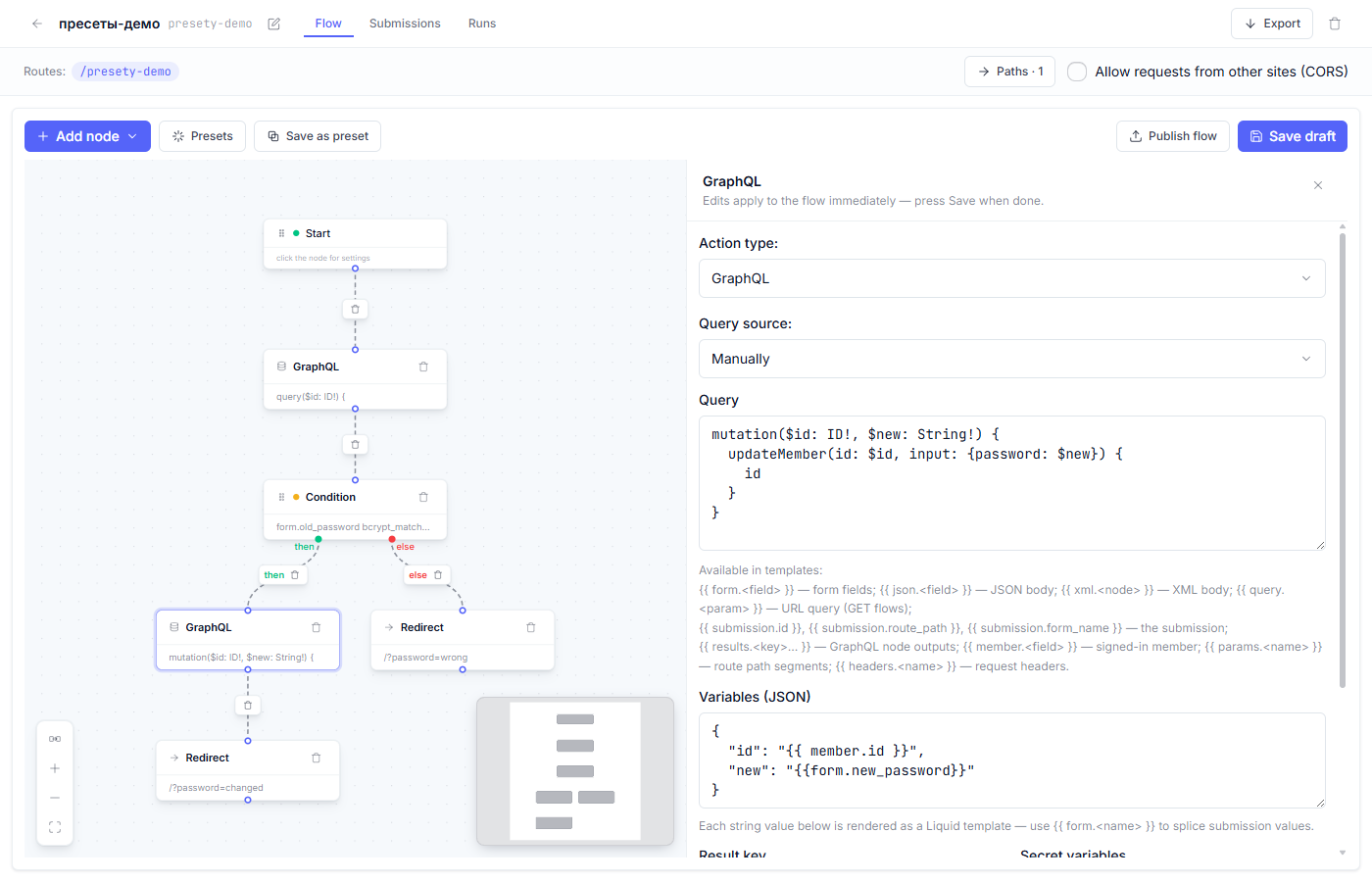
On a mismatch, the member lands on a page with an error message; the data is left unchanged.
What to check after generating
- The flow’s route is a private page (the “Members only” mode on the Start node).
- “Save draft” → “Publish flow” (“Draft, preview, and publish”).
- A run on the preview: a change with the correct old password → signing in with the new one; a change with a wrong old password → an error message, and the password stays the same.
Fine points
- The new password takes effect at once: the member’s other sessions (other browsers) keep working until their cookies run out. That is ordinary behavior for sites with cookie sessions.
- The error message stays vague about which field failed — there is exactly one check: the old password.
- The password-change form on your site sends the data to the flow’s route — the POST binding is created at generation.
Frequent questions
| Question | Answer |
|---|---|
| The member forgot the old password — what should they use? | The Forgot password preset: there the confirmation goes through email, and the old password is never asked for. |
| Can the login be changed too? | The preset changes the password only. The login changes through ordinary editing of the member record (by hand or with a separate flow). |
| Why doesn’t changing the password sign the other browsers out? | That is how cookie sessions work: each browser session lives until its own cookie expires. The “password change closes all sessions” policy belongs to server platforms with a session table. |
| Where does the member land after a successful change? | On /?password=changed (with a wrong old password — /?password=wrong); both addresses are wired into the “Redirect” nodes on the canvas — edit them right there if needed. |
Next article: The Logout preset →
See also: The Login preset · Action nodes: what each one does