Draft, preview, and publish
Flow edits never reach the live site by themselves. Until you hit “Publish flow”, visitors see the previous version. Let’s walk the whole cycle.
Draft: edit boldly
Every save in the flow editor is a draft. The status is visible right in the list: a grey-yellow “Draft” pill on the edited ones, a green “Published” on those matching the live version.
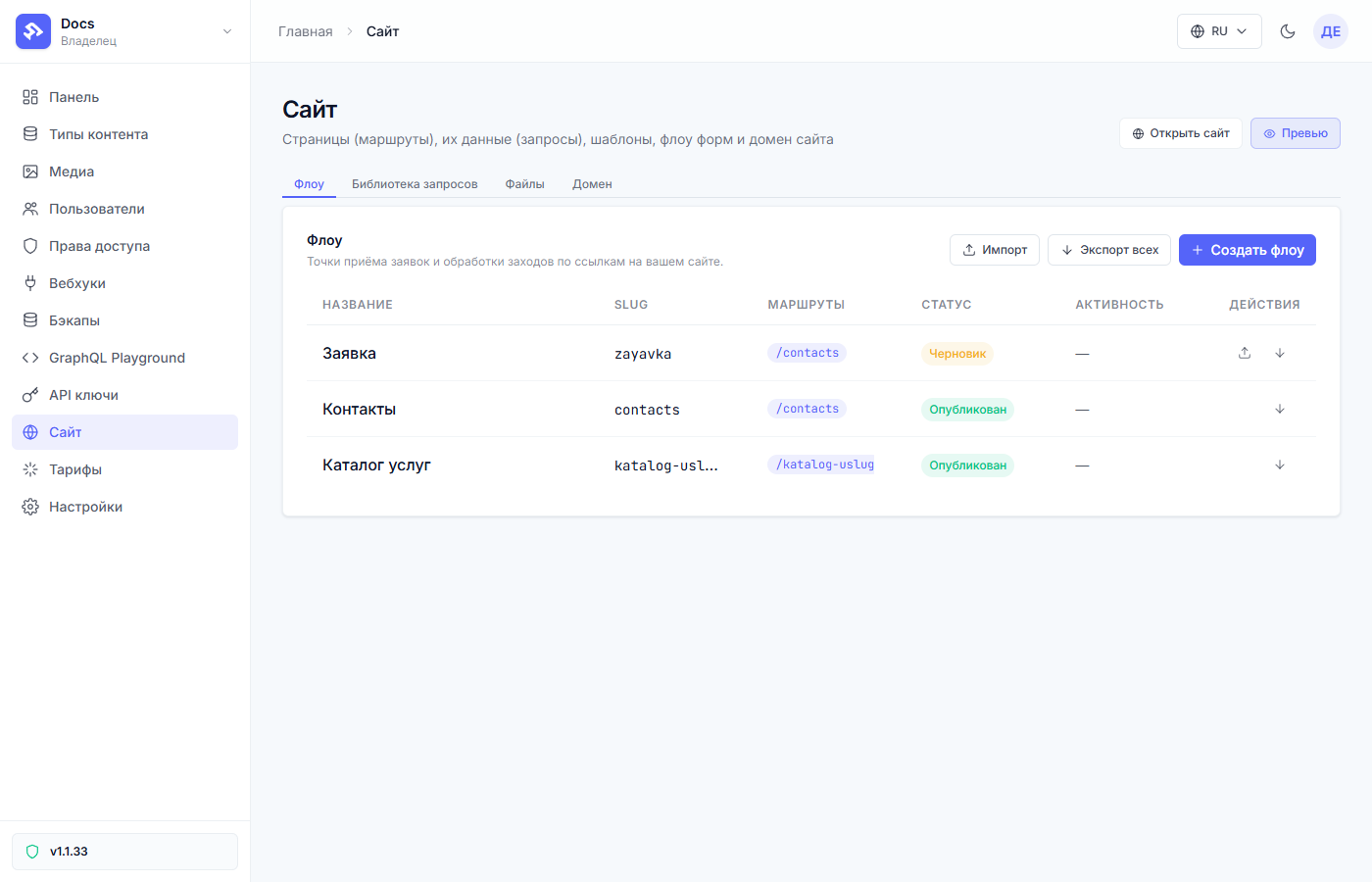
The live site meanwhile runs the last published version — you can safely redo the diagram all day long.
Preview: look through the visitor’s eyes
The “Site” page has a “Preview” button (next to “Open site”). It leads to
a special preview-… address — a copy of your site that shows the freshest
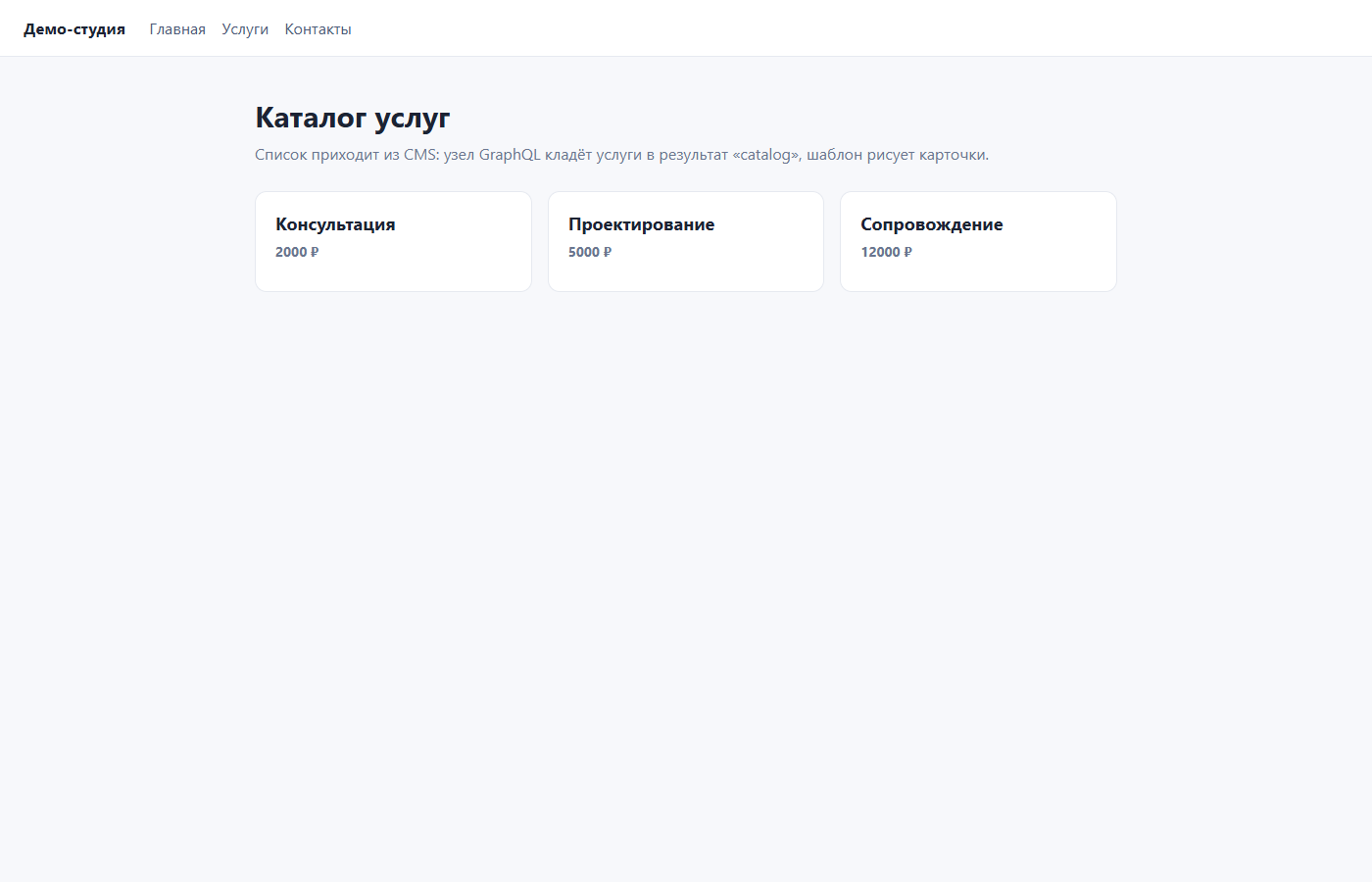
drafts. Telling a preview from the live site is easy: a round badge hangs in
the bottom right corner of a preview page.
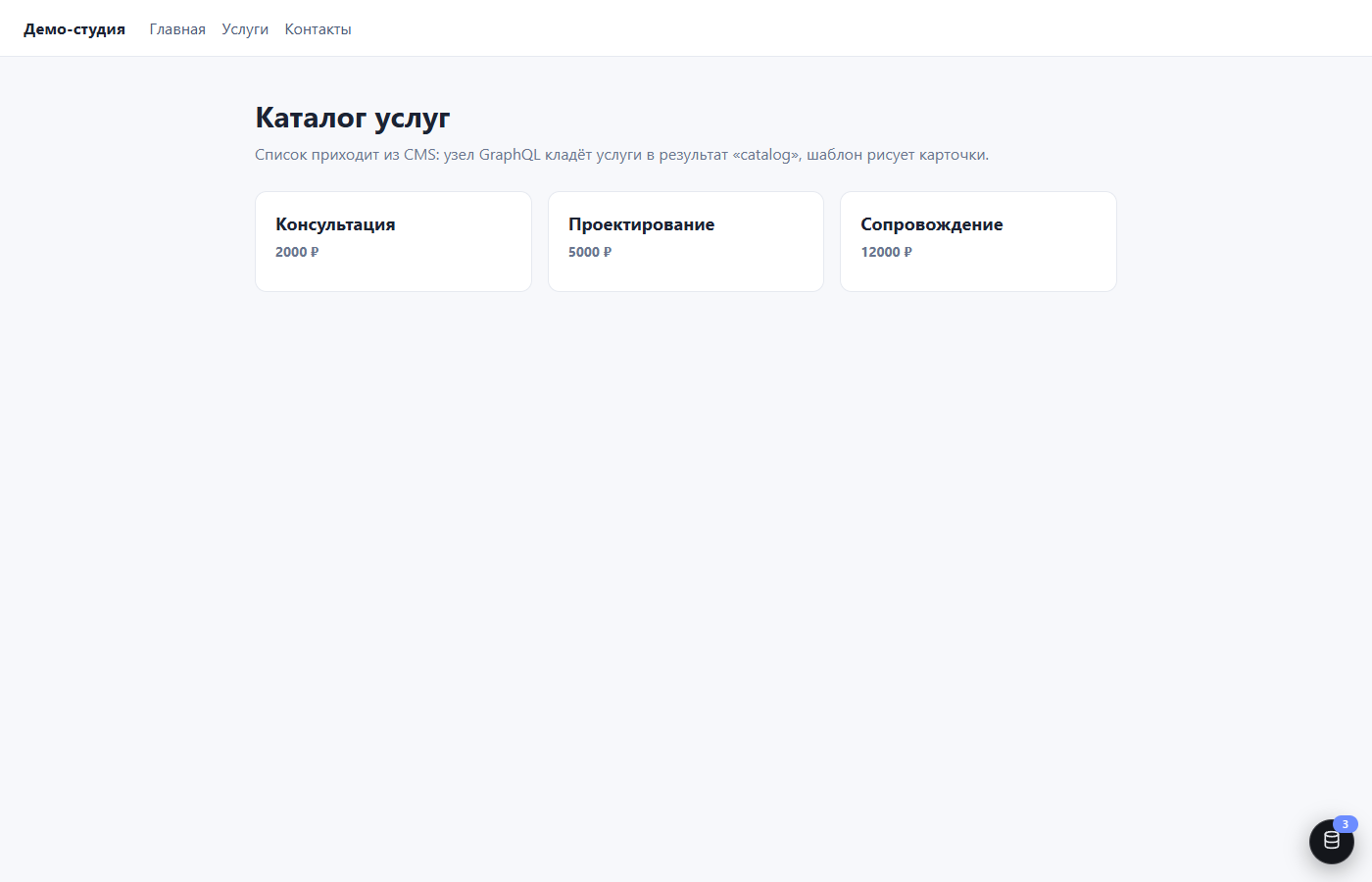
A nuance: drafts exist for more than flows. Templates (the “Files” tab) and queries (“The query library”) work the same way: an edit lands in a draft and reaches the site after publishing. So if a page on the preview looks wrong — check whether unpulled drafts remain in the neighboring tabs.
Publishing: one button, one flow
Hit “Publish flow” — in the list (the button in the row) or in the editor header. The draft version goes live instantly: the cache resets, and the next visitor gets the new version. The pill changes to “Published”.
Importantly, exactly this flow is published — the drafts of the other flows remain drafts. There is no “publish the whole site at once” anymore: each flow ships separately.
“I published, but the page is old”
The two most common cases:
- The route cache. If the route has a TTL above zero, anonymous visitors are served the remembered answer — but only until the first publish: it resets the cache itself. If the page is still old — check you published the right flow.
- You published the wrong flow. A page can have several flows (a page on GET, a form on POST). The “Draft” status in the list shows who still has unshipped edits.
Rollback
Liked the old version better? You can restore it via export: before
experimenting, hit “Export” in the flow’s row — a file with the diagram
downloads (.dynflow.json). Bring it back with “Import” of the same file.
This is covered in the article “Presets, export, and import”.
Next article: Presets, export, and import →