What flows are and why they matter
This article is where the flows documentation begins. It takes five minutes to read and requires no clicking along the way. Next in the series: “Site Files” and “The Query Library” — what a flow assembles pages from — then hands-on practice: “Your First Flow in 10 Minutes” and the node reference.
A flow is the flowchart your site runs on
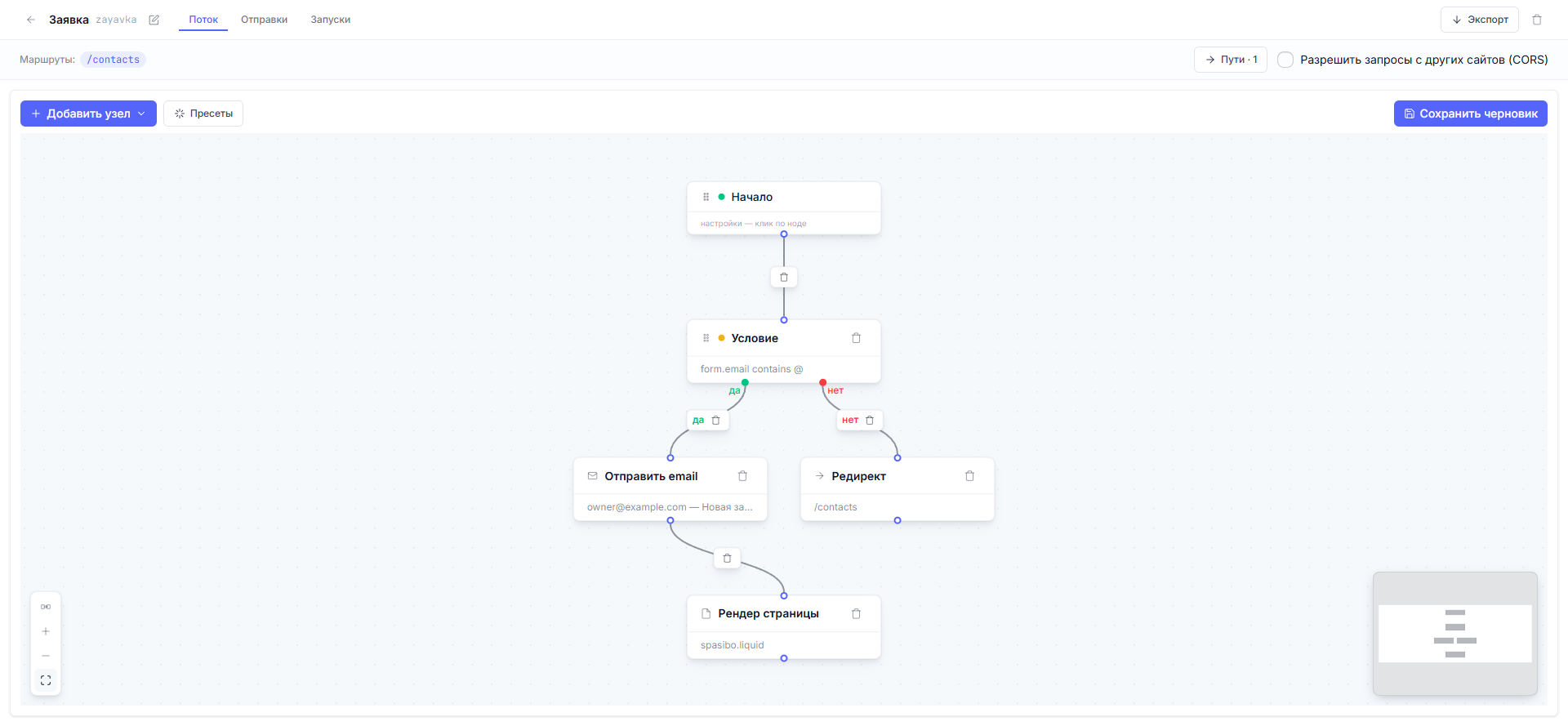
Every part of a site on the platform — a page, a form, an email, a visitor sign-in — is assembled as a flow: a diagram of cards and the connections between them. A visitor arrives — the platform runs the right diagram, and the diagram decides what to show them or where to store their data.
You don’t need to write code. You connect cards: “fetch data”, “check a condition”, “show a page”. The platform executes this diagram on every visit.
What you can build with a flow
- A page fed from the CMS — a service catalog, a list of masters, a blog. A GraphQL node fetches the records; a “Page render” node draws them with your template.
- A form with an email — a visitor leaves a request, the platform stores it in “Submissions”, emails it to you and shows a “Thank you” page.
- A Telegram notification — the same request alert, but into your chat.
- Member registration and sign-in — private site sections, personal accounts. Ready-made presets install in one click.
- A JSON reply for an external service — so a mobile app or a partner’s robot can pull data from your site.
- Redirects and visitor recognition — redirects and cookies.
What a flow is made of
Every card on the diagram is a node. There are three kinds:
| Node | What it does |
|---|---|
| Start | The entry point. Exactly one per flow, appears by itself. This is also where the “Members only” mode is enabled — the closed part of the site. |
| Action | A concrete step: fetch data, show a page, send an email… |
| Condition | A fork: take the “yes” or the “no” path depending on a check. |
Cards are connected with links. A link coming out of a condition is labeled “yes” or “no”. A flow executes from “Start” along the links; a node with no outgoing link simply ends the branch — you don’t have to draw the “no” branch if there is no need for it.
There are nine actions (each with its own settings window):
| Action | In one phrase |
|---|---|
| GraphQL | Fetch data from the CMS (queries against your content types). |
| Page render | Draw an HTML page with your template. |
| JSON response | Answer with JSON data instead of a page. |
| Send email | Send a message from your own mail server. |
| HTTP POST | Pass data to another service (a CRM, a spreadsheet, a robot). |
| Telegram notification | Drop a message into your chat. |
| Set cookie | Remember the visitor (sign them in, for example). |
| Redirect | Send them to a different address. |
| Compute | Calculate a value with an expression — for the nodes further down. |
Each action gets its own section in the article “Action nodes: what each one does”.
On the languages of flows: templates (email bodies, message texts, HTML)
are Liquid with the familiar {{ }}; value computations are short expr
expressions in the fields with the “Expression (expr-lang)” mode — the
“Compute” node, expression bodies, GraphQL variables, the condition’s
boolean expression. Which field to use when — in the “Action nodes”
article.
Where flows live
Open the “Site” section in the admin — the tab with the flow list. In the left menu it is the “Site” item, next to “Content types”. The section appears in the menu once the “Site” plugin is connected to the project (the subscription is arranged in the personal account). The list shows every flow in the project: name, site address, status.
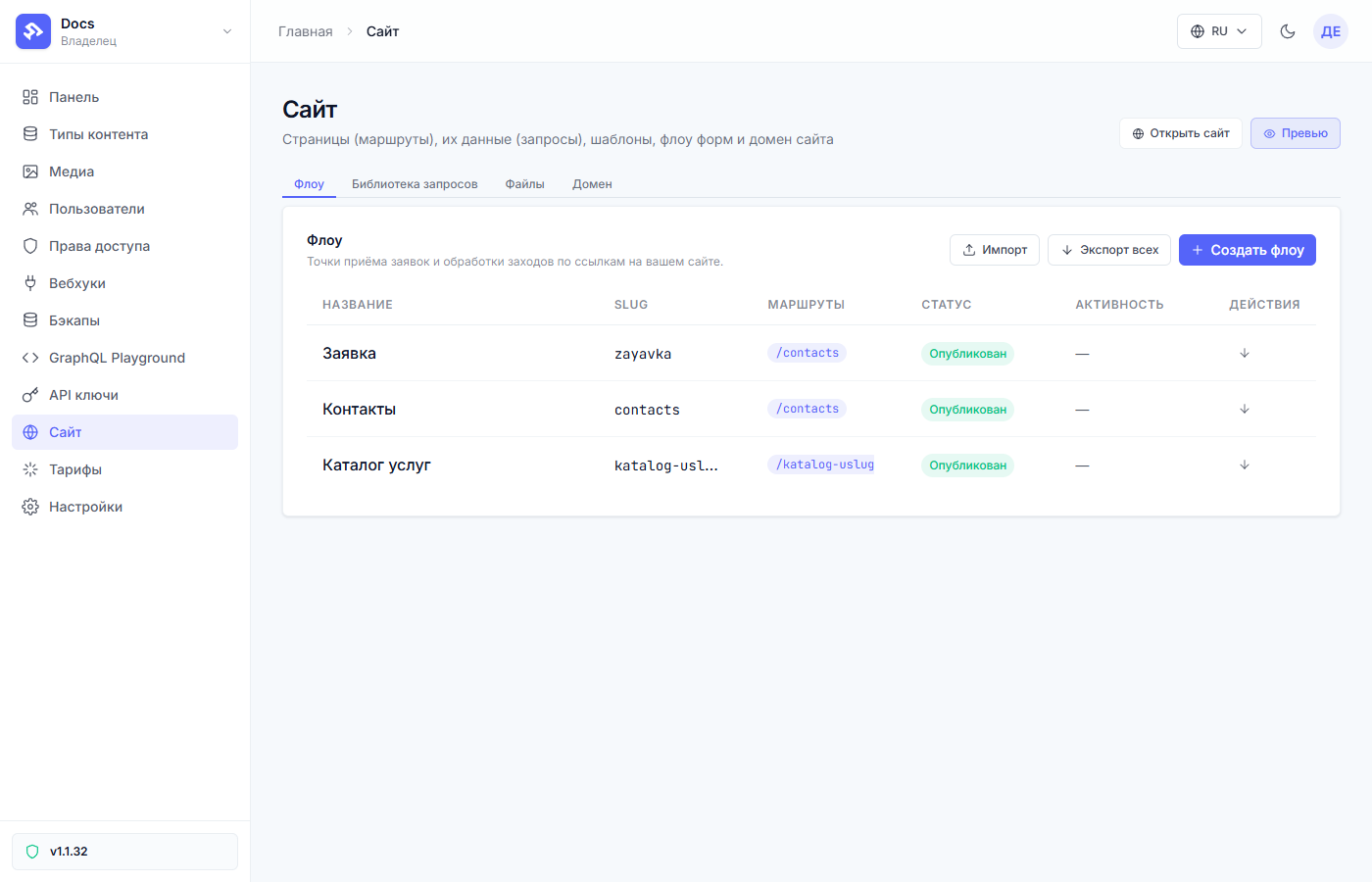
Every flow has its own site address — a route (for example,
/katalog-uslug or /contacts). The route is attached to the flow
automatically at creation, and you can change it at any moment in the editor
header, in the “Paths” window. More on this in the “Routes” article.
Life cycle: draft → preview → publish
While you edit a flow, the changes live in a draft — visitors of the live site don’t see them. You can check the result on the preview (a separate address that always shows the freshest version). When everything looks right — you hit “Publish”, and the changes go live instantly.
This is covered in detail in the article “Draft, preview, and publish”.
What’s next
A flow assembles a page from two ingredients — a template, which draws the HTML, and a query, which fetches data from the CMS. Let’s look at them first — it takes a couple of minutes, and afterwards everything falls into place.
Next article: Site files: templates and static assets →