Your first flow in 10 minutes
We will build a catalog page: it takes services from the CMS and draws them on the site. Along the way we cover the whole path you will later repeat for any page: create → assemble → save → publish.
You need access to the project admin and at least one content type with records. In the example it is the “Service” type (fields: name, price, description), but any of yours will do — a blog, products, staff.
Step 1. Create a flow
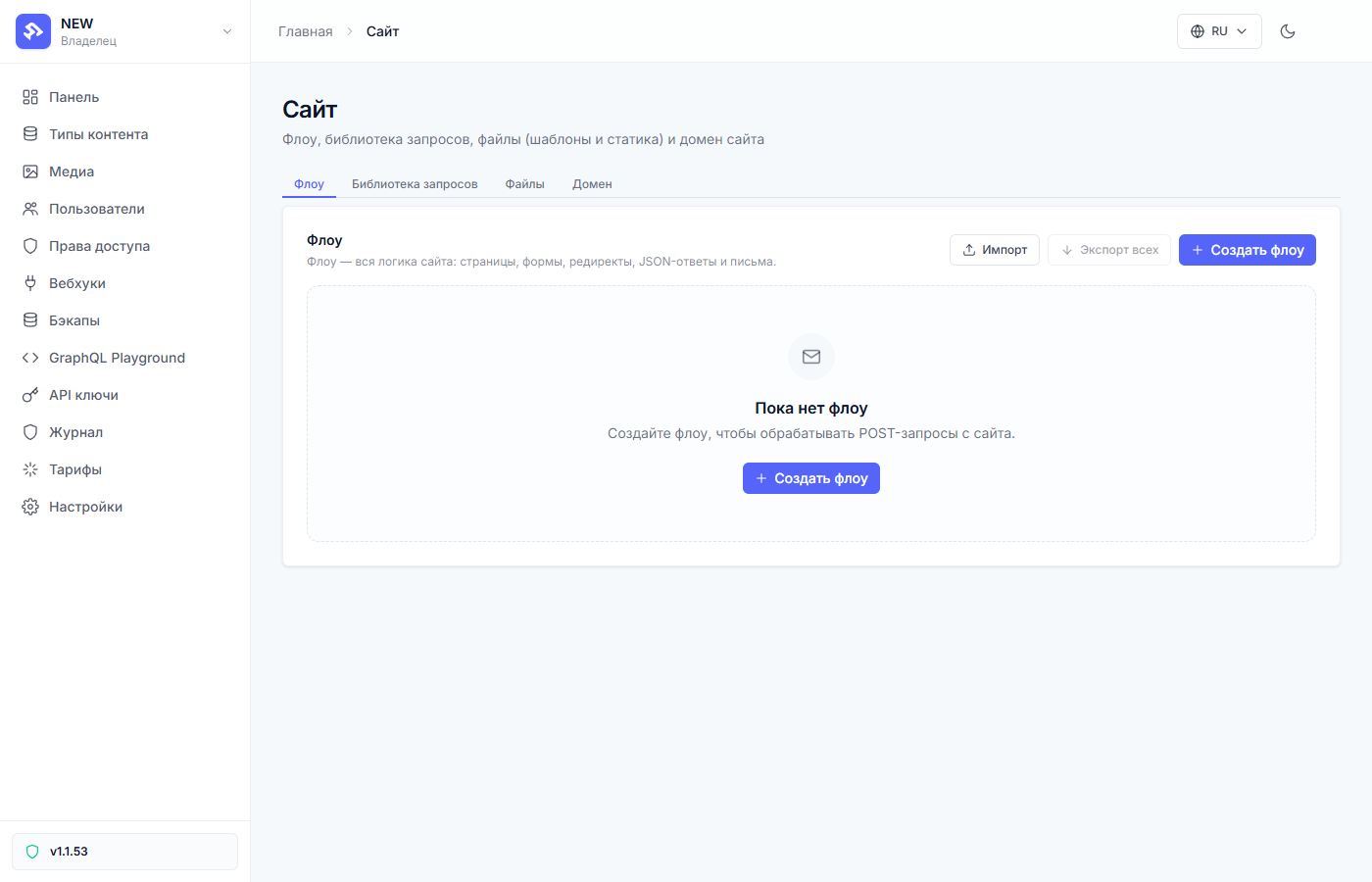
Open “Site” → the flows tab and hit “Create flow”.
In the dialog, enter the Name — for example, “Service catalog”. The
Slug — a short Latin name — is generated from the title
(katalog-uslug); you can correct it manually. The Path is the page
address on the site, for example /katalog-uslug.
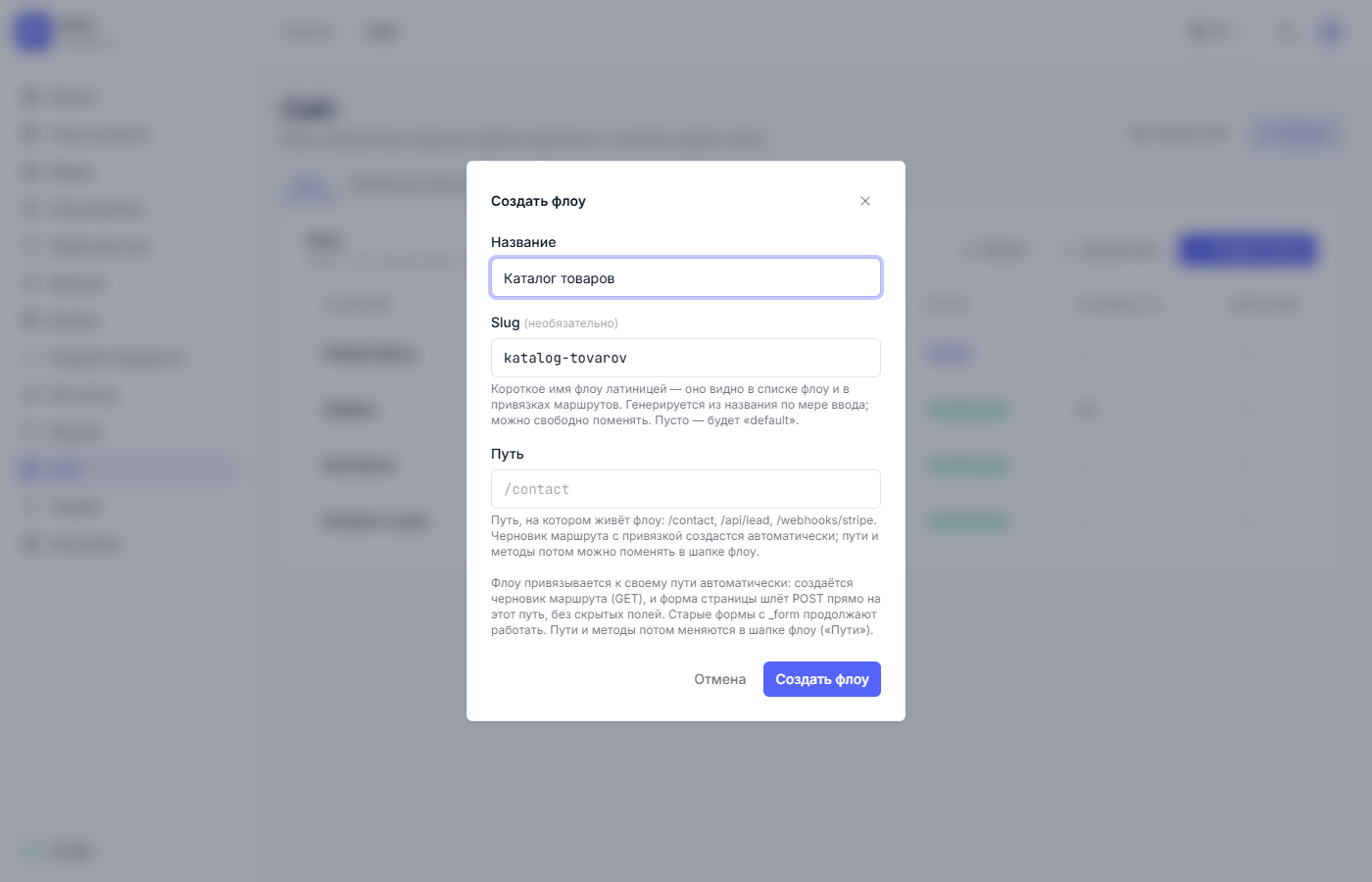
Hit “Create flow”. A row appears in the list with the “Draft” status — site visitors don’t see this flow yet.
Step 2. Look at the canvas
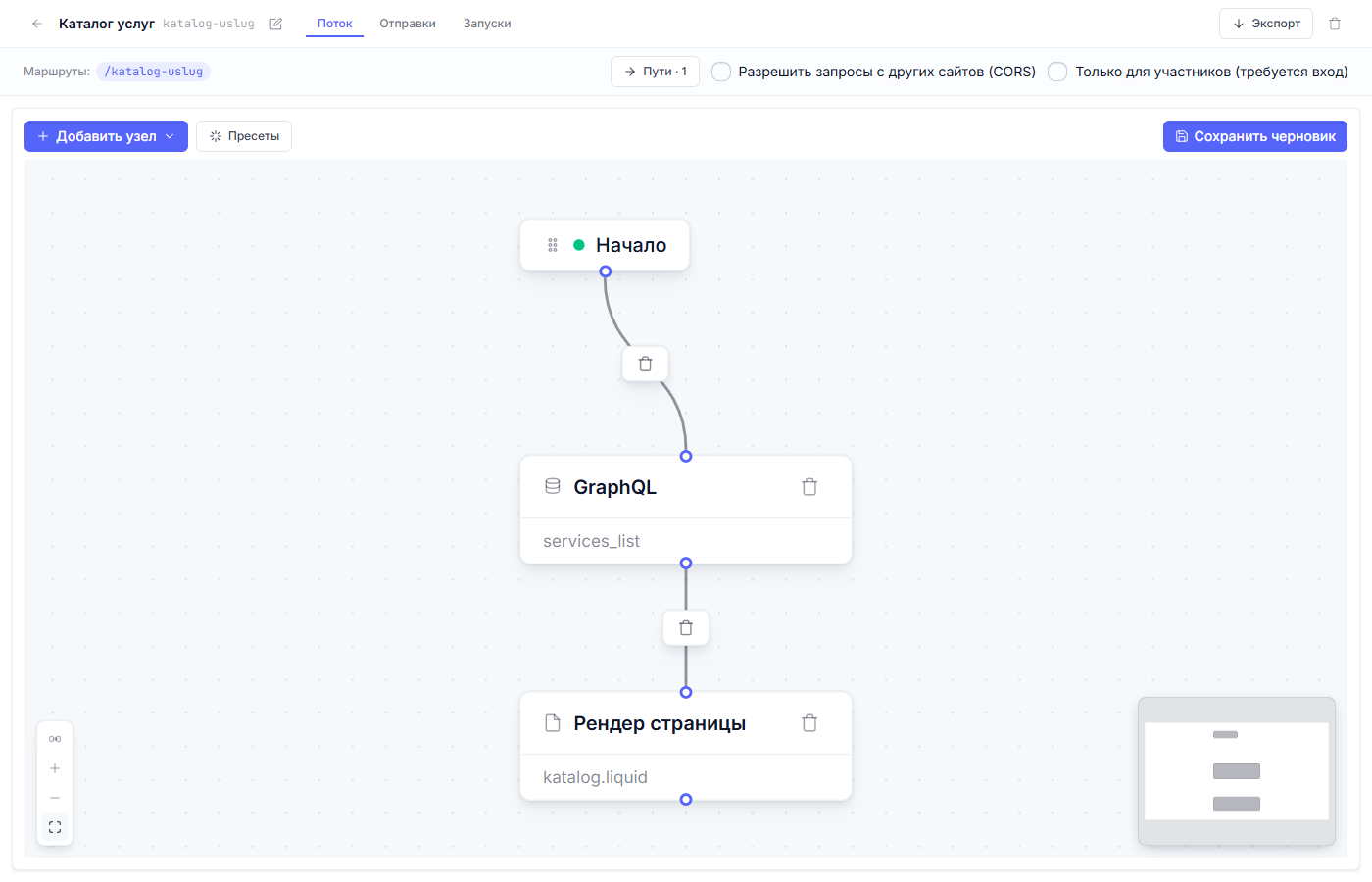
Click the row — the flow editor opens. The canvas has a single node so far, “Start” — the entry point every flow has. Everything else you will add yourself: action cards and the links between them.
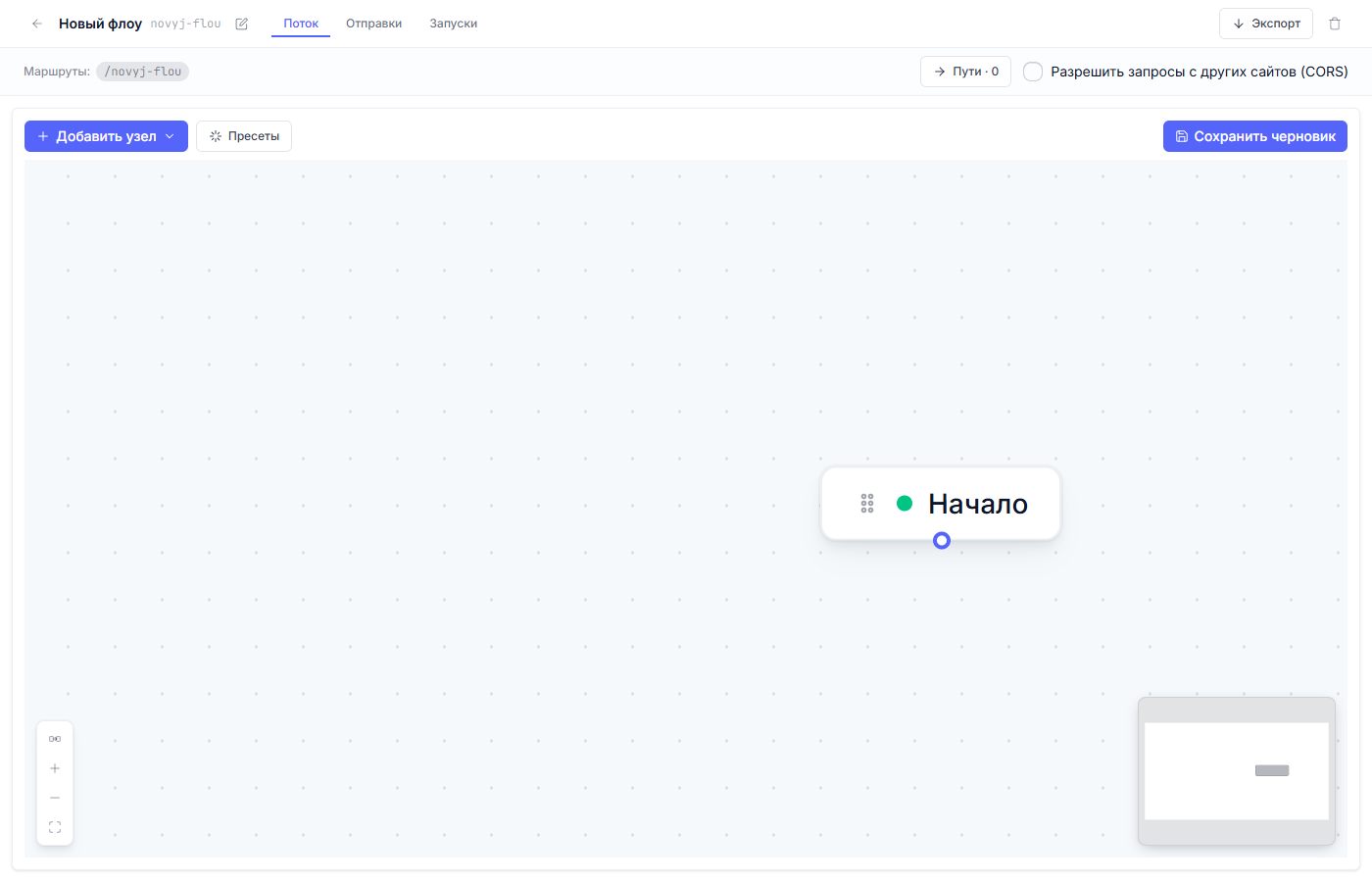
Top right are the “Publish flow” and “Save draft” buttons. While you are assembling the diagram, use “Save draft”.
Step 3. Add the node that fetches data
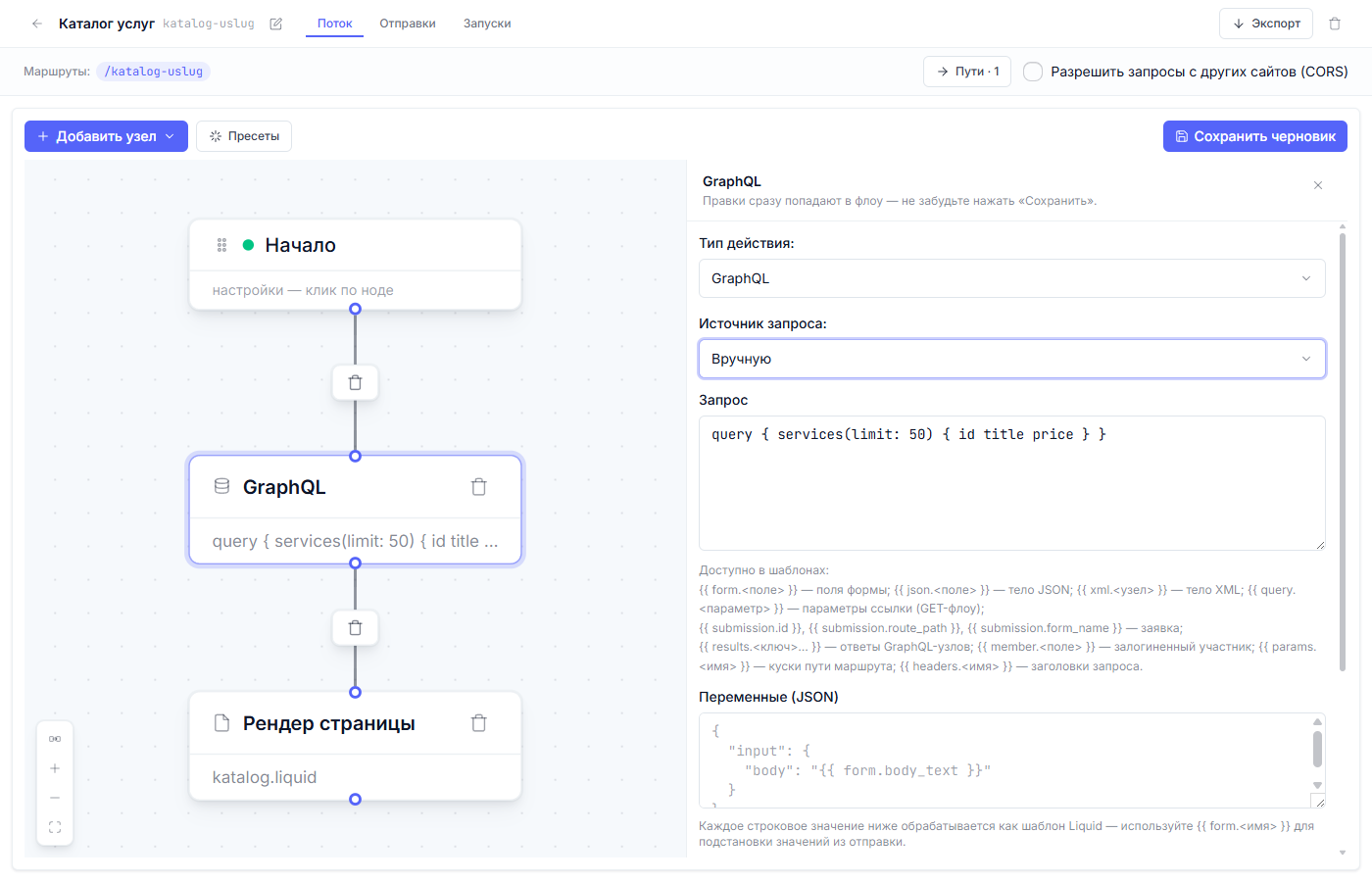
Hit “Add node” → “Action”. A settings panel opens on the right. In the “Action type” field pick GraphQL, and in the “Query source” that appears — “Manual” (by default the node points to the query library, and we need a query of our own).
Fill in two fields:
-
Query — which records and which fields to take. In our example:
query {
  services(limit: 50) {
    id
    title
    price
  }
}
(
servicesis your content type’s address in the plural; a blog getsposts, products —products, and so on.) -
Result key — the short name under which the data becomes available to the template. Enter
catalog.
Step 4. Add the node that draws the page
Hit “Add node” → “Action” again — a new card appears, with the “Send
email” action by default. In the settings panel on the right switch the
“Action type” to “Page render” and specify the template — the file
that turns the data into HTML (for example, katalog.liquid). Templates are
edited in the “Files” tab (the “Site” section); they, like the flow, live
with a draft — an edit reaches the site after publishing.
Connect the cards with a link: drag from the point under “Start” to the GraphQL card, then from GraphQL to “Page render”. If the cards landed crooked, the “Arrange cards top to bottom” button will straighten them into a tidy chain, and “Fit to screen” shows the whole diagram at once.
The result should be: Start → GraphQL → Page render.
Step 5. Save the draft and check the preview
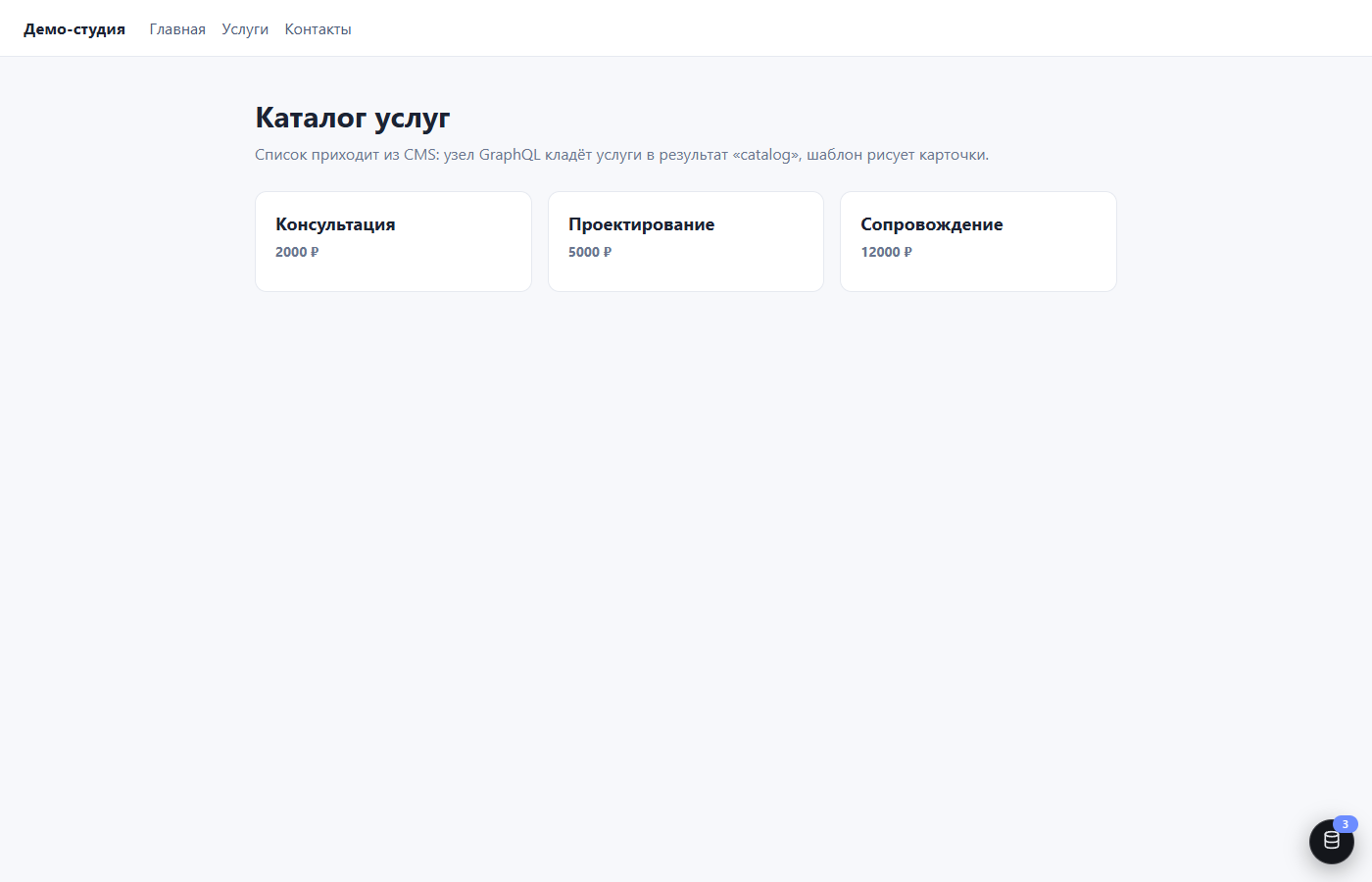
Hit “Save draft”. Now hit “Preview” on the “Site” page (or open the
address starting with preview- — it is in the hint). The preview shows the
page the way visitors will see it — with your latest edits.
Step 6. Publish
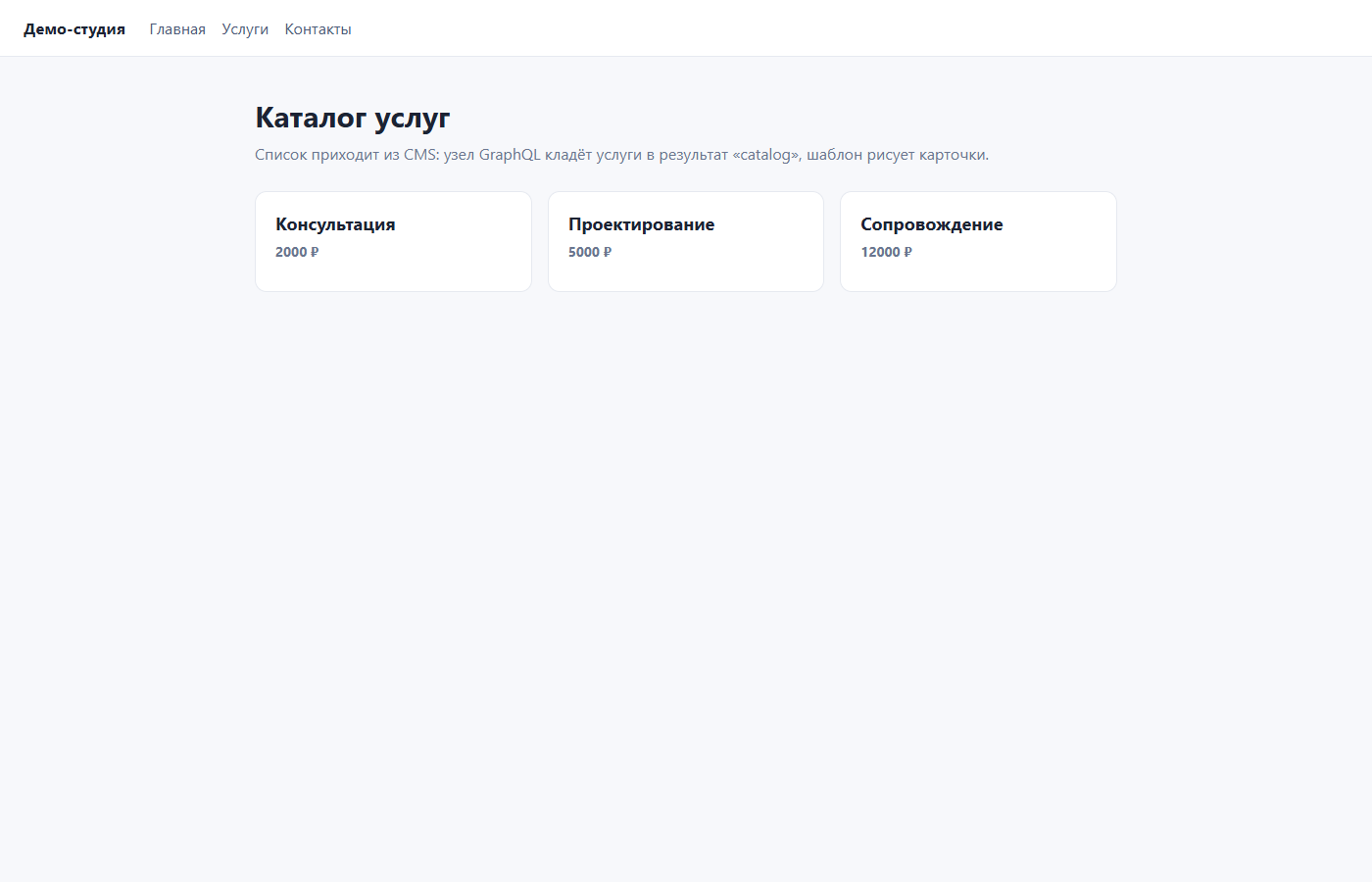
Happy with it? Return to the flow editor and hit “Publish flow”. Done:
open https://your-address/katalog-uslug — the page is live.
Next time you won’t have to delete anything: edits to this flow go back into the draft, and the live page doesn’t change until you hit “Publish flow” again. This is described in the article “Draft, preview, and publish”.
If something didn’t work
| Symptom | What to check |
|---|---|
| The page returned an error instead of the catalog | The type name in the query: it is plural (services, not service). |
| The cards are there but there is no data in them | The data path in the template: the list sits under the result key and .data — for the key catalog that is catalog.data.services. |
| Edits aren’t visible on the live site | Whether you hit “Publish flow” after the edits. |
| The preview has it, the site shows the old one | The preview shows the draft, the site shows what is published. Publish the flow. |
Next article: Action nodes: what each one does →