Giving the catalog covers from the project media library
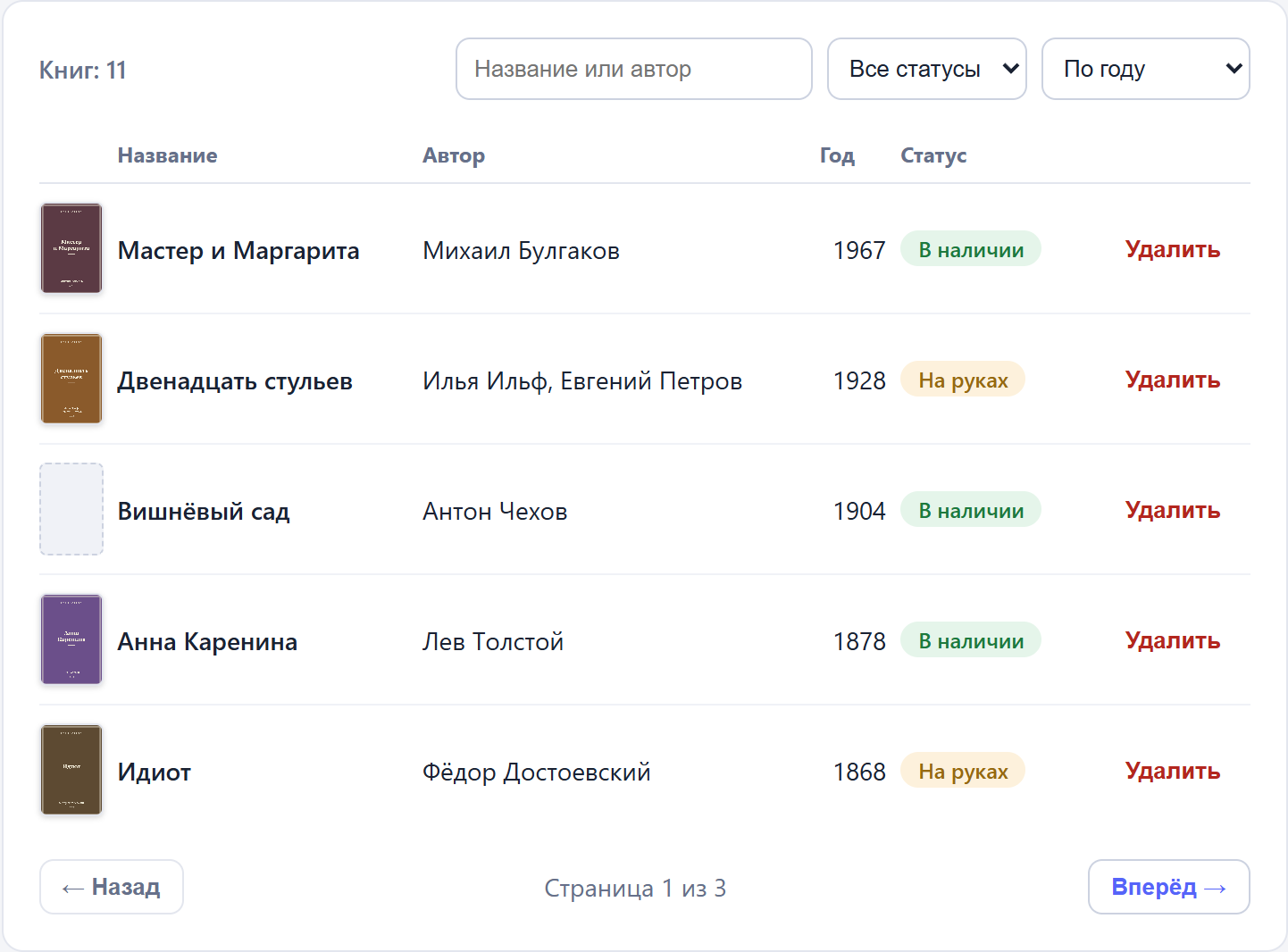
The first three parts of this series built a private catalog admin: login with a member cookie, member accounts with roles, and a JSON API with filters and honest errors. One large piece of the interface is still missing — covers. A book without a cover reads fine, but a catalog of ten such books looks like a spreadsheet.
In this part we give the catalog its covers and look at what happens to the files along the way: where they live, who can add them and how, and why you can create as many file records as you like while the bytes stay capped by your plan.
If you are just joining: the whole series builds one demo project — a public library catalog. Step one is in the part about login and the JSON API, member accounts are in the second part, validation and endpoint debugging in the third.
Where files live
Every project ships with a media data type from day one. We did not create it — like navigation, the platform seeds it when the project is created: a record has name, url, type, width and height, and the “Медиа” section in the admin is a regular editor for this type on top of an uploader.
A file you upload goes to the project’s storage, and the record receives its address:
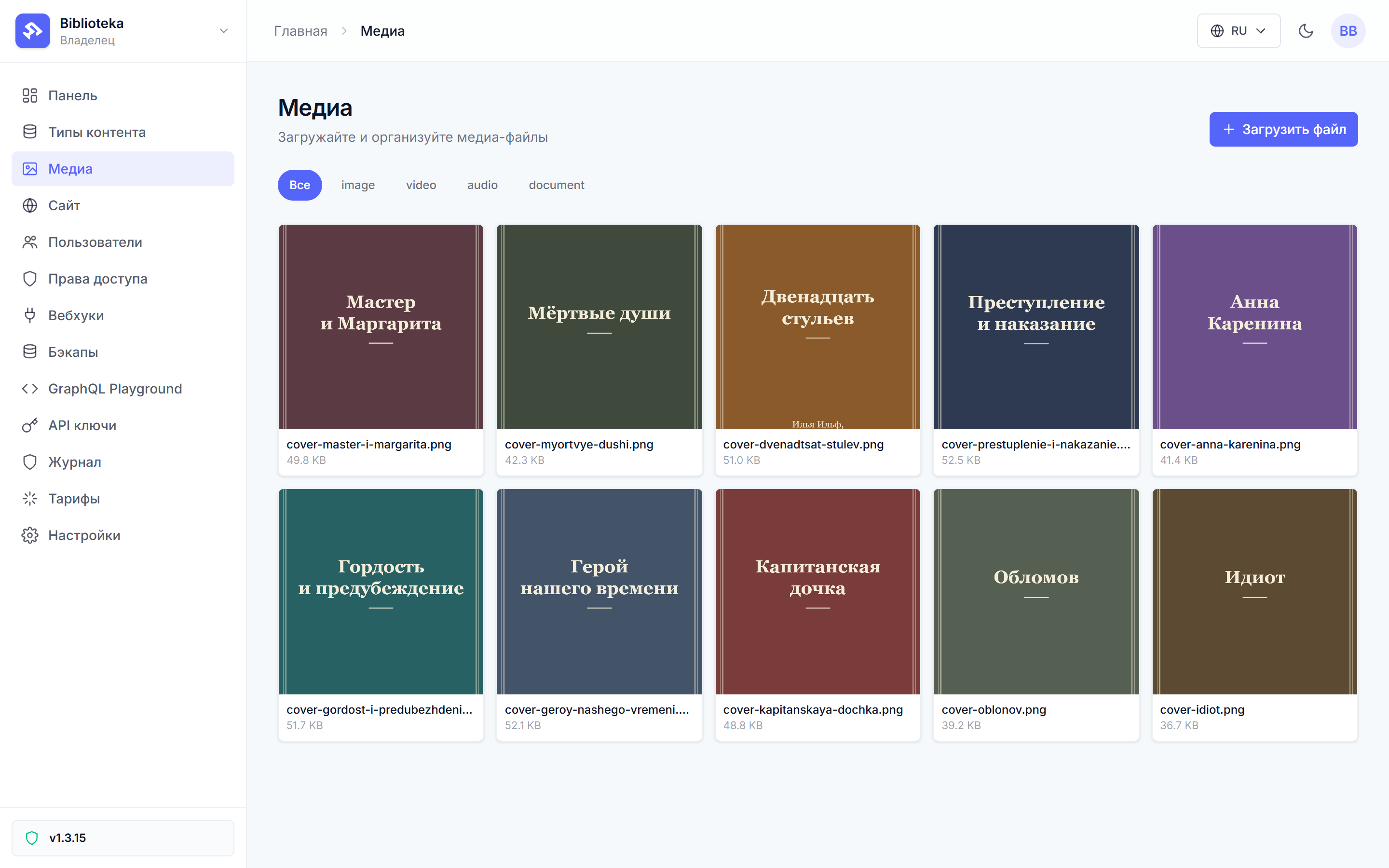
You can upload files with the upload button, or automate it — flowctl has a media push subcommand that does the same from the command line:
flowctl media push covers/*.png
Each output line is a record id and the file address. The address is what your site visitors’ browsers request when they show the image; the record id comes back when a book links to its cover.
A link, not a copy
Now the book needs a cover field. In the book type editor we add cover of type “Тип данных” pointing at media:
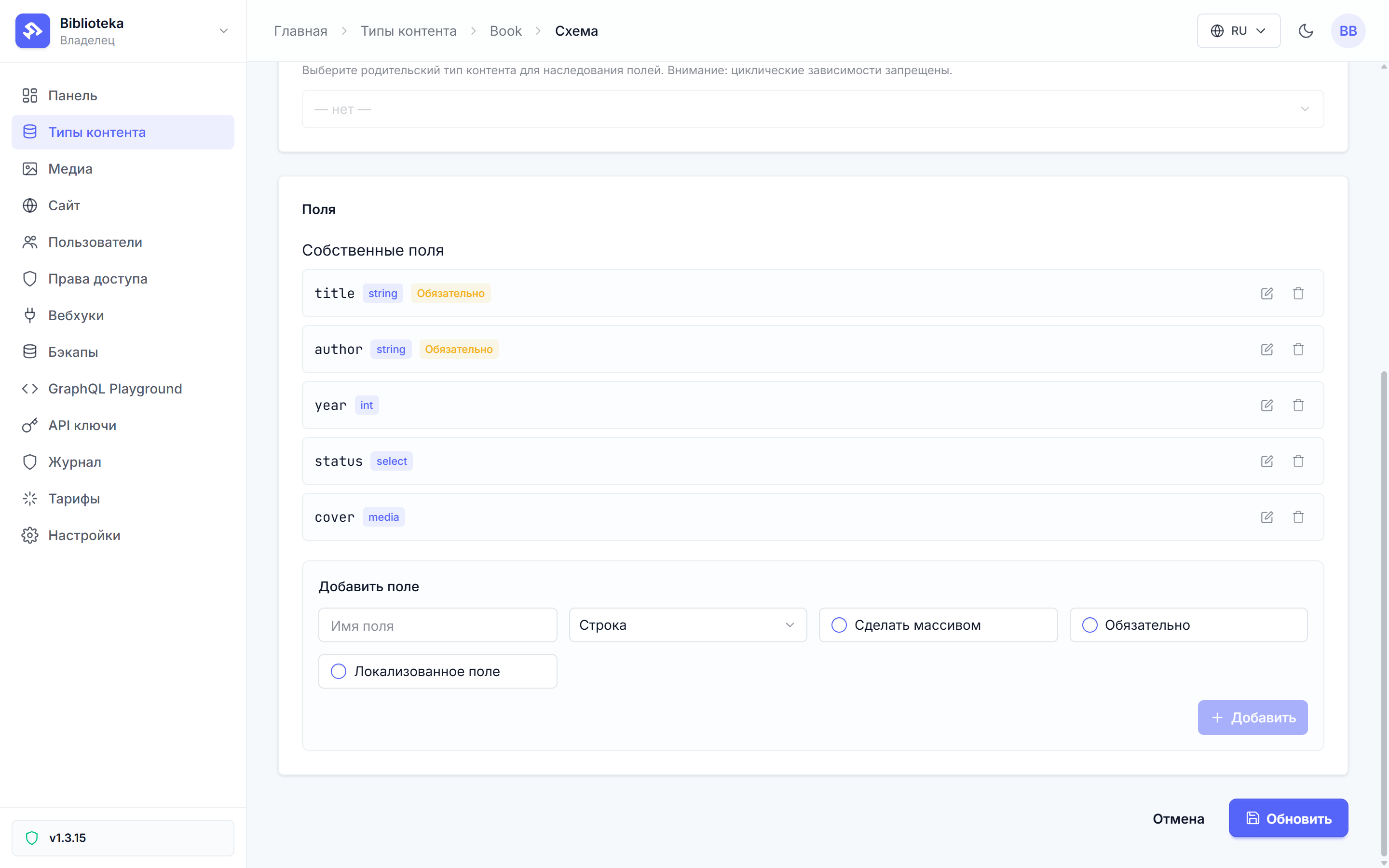
The schema rebuilds, and every book gets a field that stores a link to a media-library record. The distinction is worth spelling out: the file’s bytes live in storage exactly once, and the book keeps only the id. Ten books sharing one cover do not take ten times the space — they all point at the same file.
The link is live. Open the delete dialog for any media record and the platform shows what is attached to it:
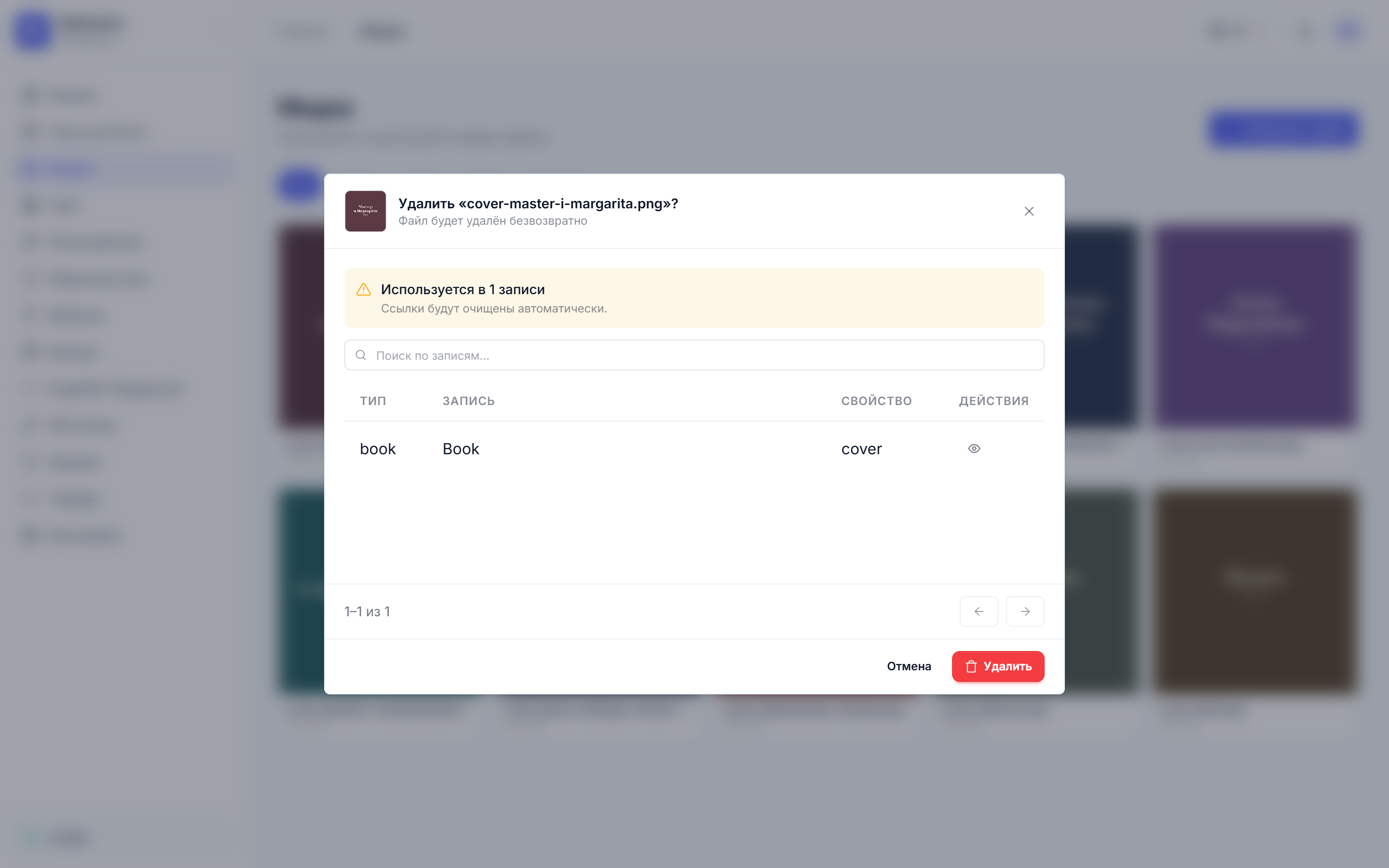
If you do delete the file, the platform does not leave broken images behind: every reference is nulled out, the book survives, its cover simply becomes empty. Deleting the file also returns its bytes to the storage quota.
The media library inside your own admin
The librarian works in our admin, so covers should be pickable without leaving the catalog. We add an endpoint that serves the media library. A media_list flow on the GET /api/media route has two nodes: a graphql query and the response:
{
  "query": "query {\n  medias(limit: 60, orderBy: [{field: CREATED_AT, direction: DESC}]) {\n    id name url type width height\n  }\n}",
  "result_key": "q"
}
medias is the regular auto-generated query for the media type: newest records first. The response passes them through:
{ "items": {{ results.q.medias | json }} }
(The body_template + | json form is a relic: since v1.4.16 Liquid is removed from the “JSON response” “Body (template)” — the key became a static string, and such an assembly would reach the client verbatim, breaking the JSON. The body only needs "body_expr": "{ items: results.q.medias }" — the value is encoded as data, no escaping.)
The route is marked membersOnly — the project’s media library is visible only to signed-in staff, like the rest of the catalog API.
A cover by URL
A file from disk reaches the project through the authenticated upload path — that path stays with the platform admin. But media records come in more than one kind: besides uploaded files, the library can hold links to images that already live on the internet. And a flow can create such a record — it is a regular createMedia, the same kind of mutation as createBook from part three.
A media_add flow on POST /api/media checks two fields and creates the record:
{
  "id": "a_create",
  "type": "action",
  "data": {
    "action_type": "graphql",
    "config": {
      "query": "mutation($name: String!, $url: String!) {\n  createMedia(input: {name: $name, url: $url, type: \"image\"}) {\n    id name url\n  }\n}",
      "variables": {
        "name": "{{json.name | strip}}",
        "url": "{{json.url | strip}}"
      }
    }
  }
}
Before the mutation come two conditions with branches to 400s: the address must use the https scheme (json.url matches ^https://\S+$), and the name must not be blank. Error responses follow the pattern from part three: {"error": "VALIDATION", "field": "url", "message": "..."}, so the front end knows which field to highlight.
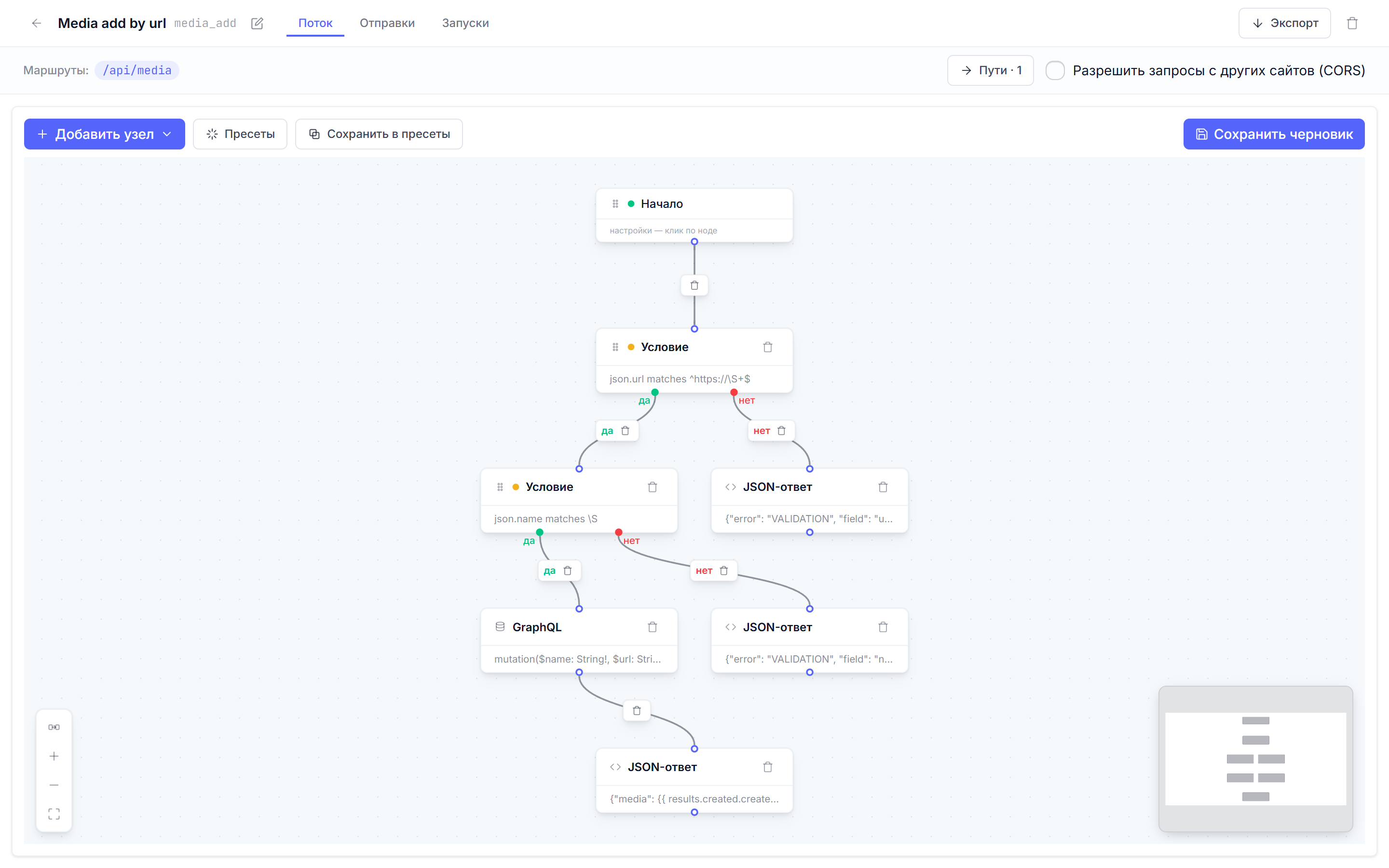
Note what this flow does not contain: bytes. What travels through the flow is a string with an address. The multipart protocol a browser uses to upload files to “Медиа” never enters site flows — and that is a deliberate boundary: flows work with strings and data, while binary files reach storage only through the authenticated upload path.
A by-URL record costs no storage: it has no bytes, the platform keeps only the address. Uploads are what the quota charges for.
A picker in the form
The front end gains a second data source. Next to the catalog it loads the media library:
const covers = ref<MediaItem[]>([]);

async function loadCovers() {
  const res = await fetch("/api/media", { headers: { Accept: "application/json" } });
  if (!res.ok) return;
  covers.value = (await res.json()).items ?? [];
}
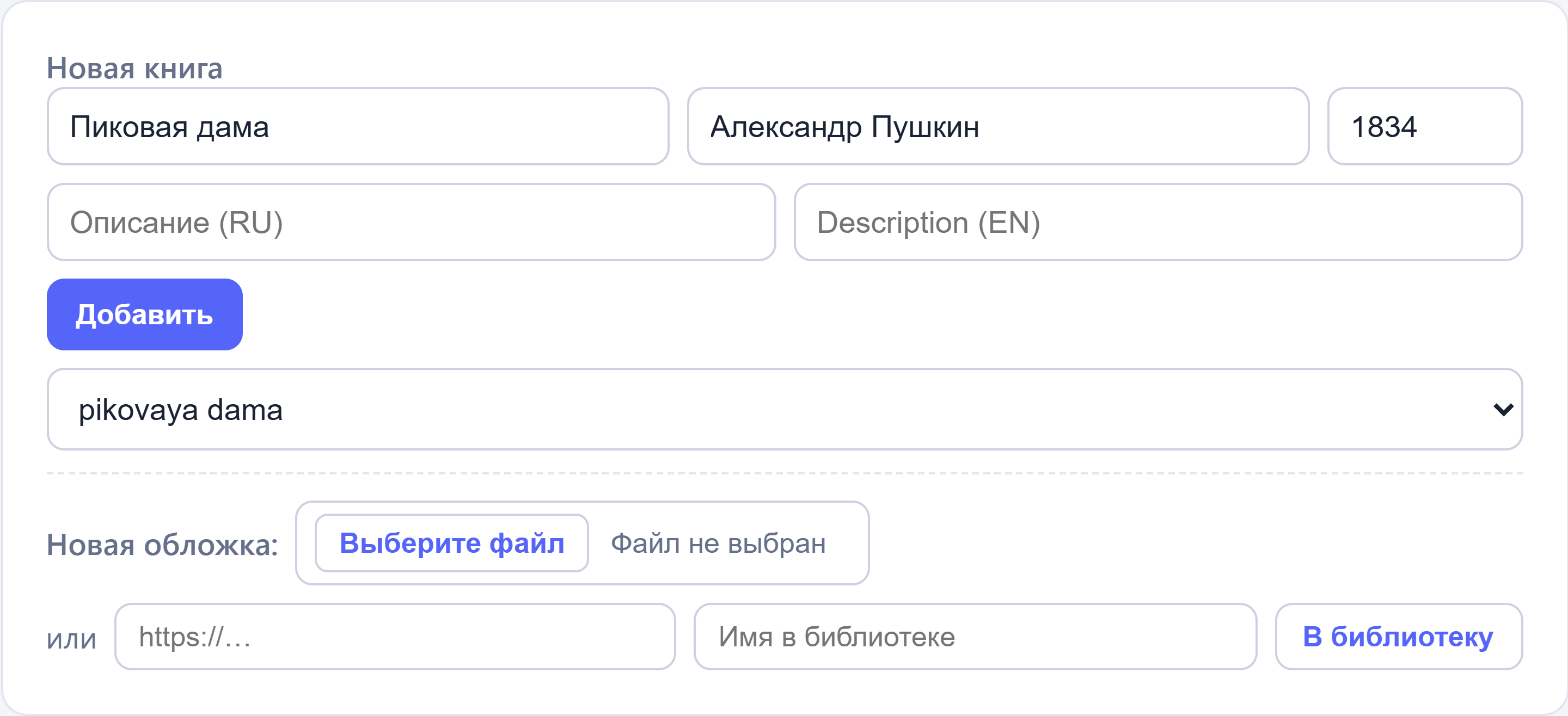
The add-book form gets a select: “Без обложки” plus everything in the library. The “В библиотеку” button next to it posts an address to the flow from the previous step and immediately selects the new record:
The add-book flow accepts the cover id, and its validation is as picky as in part three: an empty value passes (a cover is optional), a non-empty one must be a UUID — otherwise a 400 naming the cover field:
{ "field": "json.cover", "operator": "matches",
  "value": "^[0-9a-f]{8}-[0-9a-f]{4}-[0-9a-f]{4}-[0-9a-f]{4}-[0-9a-f]{12}$" }
The mutation creates the book and returns the cover as a nested object right away:
{
  "query": "mutation($title: String!, $author: String!, $year: Int, $status: String, $cover: ID) {\n  createBook(input: {title: $title, author: $author, year: $year, status: $status, cover: $cover}) {\n    id title author year status\n    cover { id url }\n  }\n}",
  "variables": {
    "cover": "{{json.cover}}"
  }
}
A link field in the schema is a full object: you can query its id, url and everything else a media record has. The book list in books_list selects the same cover { id url }, and the table gains a thumbnails column:
A book without a cover is not an error: the placeholder shows the field is simply not filled in.
From your disk
A link is not the only way. The “Новая обложка” (New cover) row accepts a file from your disk: it travels as a multipart request to POST /api/media/upload, and the platform files it into the project media library itself.
That route runs with the “Принимать файлы” (Accept files) toggle on. The toggle defaults to off: a flow without it rejects the file before storing anything, with FORM_FILES_NOT_ACCEPTED. When allowed, the file arrives in the flow as a ready media record:
{ "media": { "id": "…", "url": "https://…", "name": "cover-pikovaya-dama.png",
             "mime_type": "image/png", "file_size": 28110, "type": "image" } }
The admin sends FormData, takes media.id, and drops the fresh record straight into the picker: the cover selects itself, no “Медиа” and no links involved. Platform caps: 10 MB per file, up to 10 files per submission, quota checked before a single byte lands.
How many bytes you may upload
Storage is a plan quota, and it is enforced in both directions. On upload the platform checks the quota before the file goes to storage: if there is not enough room, the upload is rejected. Deleting a file returns its bytes. The numbers come from the plans: 100 MB on the free plan, 2 GB on Starter, 6 GB on Professional, 20 GB on Business.
Site flows take part in that arithmetic exactly as far as you allow: on a route with the “Принимать файлы” (Accept files) toggle, a submission’s bytes count against the quota, checked before anything is stored (previous section). The POST /api/media endpoint still adds link records that weigh nothing; “Медиа” and media push take files directly, with the quota enforced the same way.
The practical conclusion for your admin: even if a staff member adds a hundred covers by URL, the storage counter will not move. You pay for files, not for records about them.
What stayed off-screen
A media record has an alt_text field, and it is localized — a {ru, en} map. One cover, two captions for it. That is our catalog’s first encounter with localization, and it is the subject of the next part of the series.
All the .dynflow.json files from this part live in the step-7-media branch and are applied with flowctl apply flows/media_list.dynflow.json --publish. The catalog from the article is a live project: biblio.dynapi.ru opens on the login page, the reader reader@biblio.test with the password chitalka-2026 — walk the admin, the covers are real.
All posts